MagisTV APK Not Installing? Try These Solutions
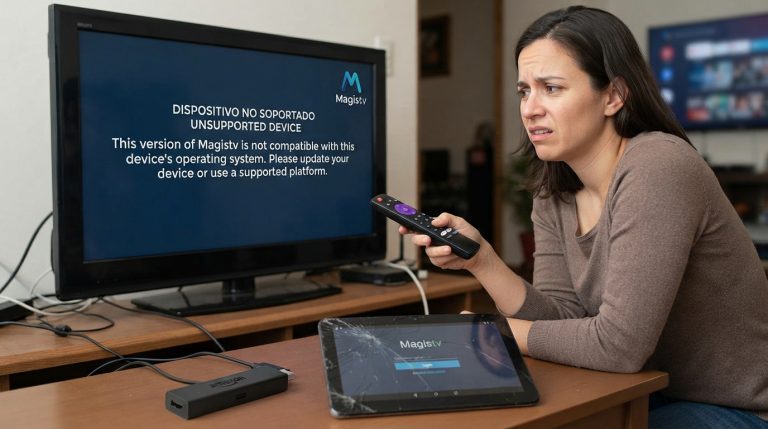
If the MagisTV APK won’t install on your Android device, you’re not alone. Many users encounter installation problems such as the “App Not Installed” error, parse errors, or installations that stop before completion. These issues are usually caused by incompatible Android versions, corrupted APK files, insufficient storage, or incorrect security settings. Fortunately, most installation problems can be resolved with a few simple troubleshooting steps.
Why Is the MagisTV APK Not Installing?
There are several reasons why the installation may fail, including:
- Corrupted or incomplete APK file
- Insufficient device storage
- Incompatible Android version
- Unknown Sources permission disabled
- Existing app conflicts
- Damaged package installer
- Security or antivirus restrictions
- Downloaded APK from an unreliable source
Once you identify the cause, applying the correct solution becomes much easier.
Check Your Android Version
Before installing MagisTV, make sure your device meets the minimum Android requirements.
To check your Android version:
- Open Settings.
- Tap About Phone.
- Select Android Version.
If your device is running an outdated version of Android, update it if possible before installing the latest MagisTV APK.
Download the APK Again
A partially downloaded or corrupted APK is one of the most common causes of installation failures.
To fix this:
- Delete the existing APK file.
- Download a fresh copy from a trusted source.
- Wait until the download finishes completely.
- Try installing the new APK.
Avoid interrupted downloads, as they can corrupt the installation file.
Enable Installation from Unknown Sources
Android blocks apps installed outside the Google Play Store unless permission is granted.
To enable installation:
- Open Settings.
- Go to Security or Privacy.
- Tap Install Unknown Apps.
- Select your browser or file manager.
- Enable Allow from This Source.
After the installation is complete, you can disable this permission again if you prefer.
Free Up Device Storage
Insufficient storage can prevent Android from installing new applications.
To free up space:
- Delete unused apps.
- Remove unnecessary downloads.
- Clear temporary files.
- Delete duplicate photos and videos.
Having at least 2–3 GB of free storage is recommended.
Restart Your Android Device
Temporary system glitches may interfere with the installation process.
To restart:
- Press and hold the Power button.
- Tap Restart.
- Wait for the device to boot.
- Try installing MagisTV again.
A restart refreshes Android’s package installer and system processes.
Remove the Previous Version
If an older or modified version of MagisTV is already installed, it may conflict with the new APK.
To remove it:
- Open Settings.
- Go to Apps.
- Select MagisTV.
- Tap Uninstall.
- Restart your device.
- Install the latest APK.
Removing the previous version often resolves installation conflicts.
Clear Package Installer Cache
The Android Package Installer can occasionally become corrupted.
To clear its cache:
- Open Settings.
- Go to Apps.
- Tap Show System Apps if necessary.
- Select Package Installer.
- Tap Storage.
- Choose Clear Cache.
Retry the installation after clearing the cache.
Disable Antivirus or Security Apps
Some security applications mistakenly block APK installations.
Temporarily disable:
- Antivirus apps
- Device security tools
- Third-party app protection software
After installing MagisTV successfully, re-enable your security software.
Check the APK File Name
If the APK file has been renamed or modified, Android may fail to recognize it correctly.
Ensure that:
- The file extension remains .apk
- The file has not been altered
- The download completed successfully
Using the original file name helps prevent installation errors.
Update Android Software
Older Android versions may not fully support the latest MagisTV release.
To update:
- Open Settings.
- Tap System.
- Select Software Update.
- Install any available updates.
- Restart your device.
Keeping Android updated improves compatibility with newer applications.
Try Installing with a Different File Manager
Sometimes the default file manager cannot properly launch APK installations.
Try using another trusted file manager:
- Open the APK using a different file manager.
- Tap the APK file.
- Start the installation.
This simple change can resolve installation issues on some devices.
Check Available RAM
Although RAM doesn’t directly affect installation, low available memory can interrupt the installation process.
Before installing:
- Close all background apps.
- Restart your phone.
- Try the installation again.
Freeing memory improves system performance during installation.
Reset App Preferences
Incorrect app settings may interfere with Android’s package installer.
To reset app preferences:
- Open Settings.
- Go to Apps.
- Tap the three-dot menu.
- Select Reset App Preferences.
- Restart your device.
This restores default app settings without deleting your personal data.
Perform a Clean Installation
If nothing else works, perform a clean installation.
Steps:
- Uninstall MagisTV completely.
- Delete the downloaded APK.
- Restart your Android device.
- Download the latest APK again.
- Install it.
- Open the app and complete the setup.
A clean installation resolves many persistent installation problems.
Contact MagisTV Support
If the APK still won’t install after trying all the above methods, contact MagisTV support.
Provide the following details:
- Android version
- Device model
- Screenshot of the installation error
- Exact error message displayed
- MagisTV APK version
- The troubleshooting steps you’ve already completed
Sharing complete information will help the support team diagnose the issue more quickly.