How to Fix MagisTV “Unsupported Device” Error
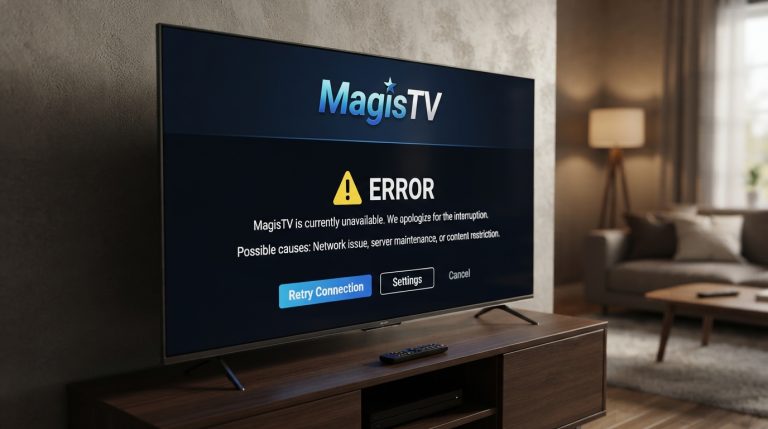
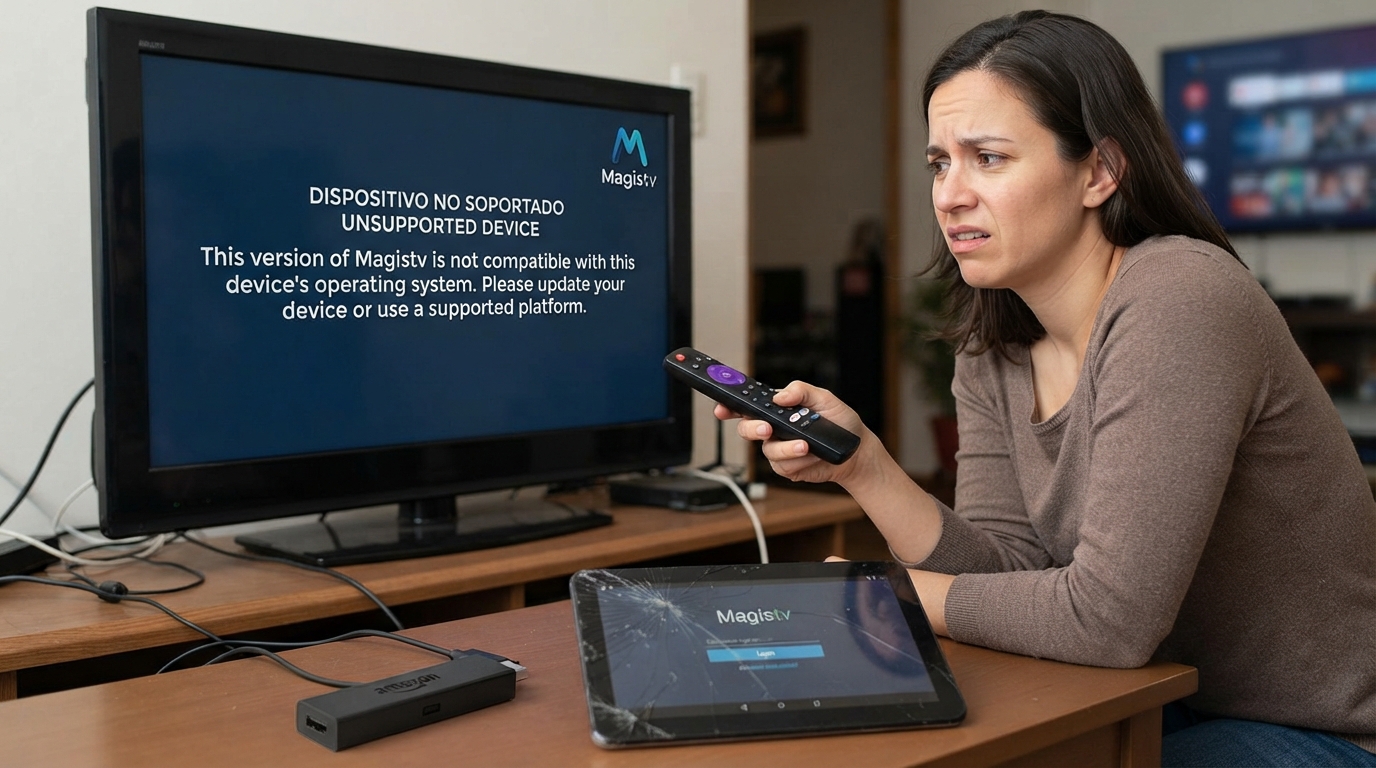
The “Unsupported Device” error in MagisTV can prevent you from opening the app or streaming your favorite content. This message usually appears when the app detects that your device doesn’t meet its compatibility requirements or when there are software conflicts. In some cases, the issue is caused by an outdated Android version, an old MagisTV APK, device certification problems, or corrupted installation files. Fortunately, there are several ways to fix this error and get MagisTV working again.
Why Does MagisTV Show the “Unsupported Device” Error?
This error may occur because of:
- Outdated Android version
- Old MagisTV APK
- Device compatibility issues
- Corrupted installation files
- Unsupported Android TV box
- Rooted or modified Android system
- Incompatible processor architecture
- Temporary software glitches
Understanding the cause will help you choose the right solution.
Check Your Android Version
MagisTV may require a newer version of Android to function properly.
To check your Android version:
- Open Settings.
- Tap About Phone.
- Select Android Version.
If your device is running an older version, update it if an update is available.
Update MagisTV to the Latest Version
Running an outdated version of MagisTV can trigger compatibility errors.
Updating the app provides:
- Improved device compatibility
- Bug fixes
- Better performance
- Enhanced security
- Support for newer Android versions
Always install the latest version available.
Restart Your Android Device
Temporary software glitches can sometimes cause MagisTV to incorrectly detect your device.
To restart:
- Press and hold the Power button.
- Tap Restart.
- Wait for the device to reboot.
- Open MagisTV again.
A simple restart often resolves temporary compatibility issues.
Clear MagisTV Cache
Corrupted cache files may prevent the app from loading correctly.
To clear the cache:
- Open Settings.
- Go to Apps.
- Select MagisTV.
- Tap Storage.
- Choose Clear Cache.
Restart the app after clearing the cache.
Clear App Data
If the problem continues, reset the application.
Steps:
- Open Settings.
- Navigate to Apps.
- Select MagisTV.
- Tap Storage.
- Choose Clear Data.
You’ll need to sign in again after completing this process.
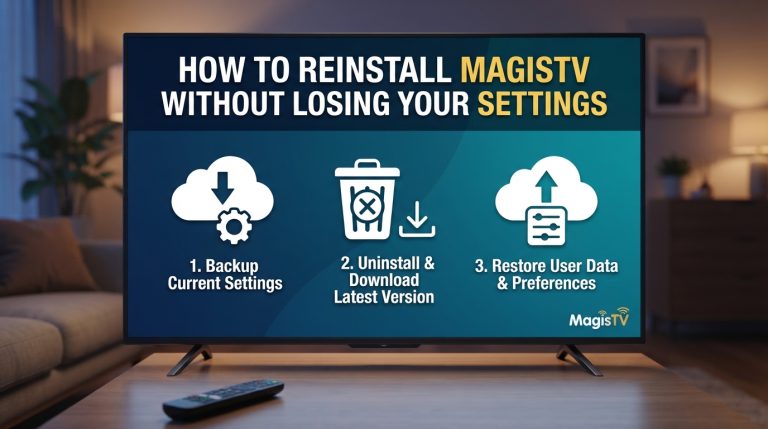
Reinstall MagisTV
Corrupted installation files can cause compatibility errors.
To reinstall:
- Uninstall MagisTV.
- Restart your Android device.
- Download the latest APK.
- Install the application.
- Sign in to your account.
A fresh installation replaces damaged files that may be causing the issue.
Verify Device Compatibility
Some older Android phones, tablets, or TV boxes may not support the latest version of MagisTV.
Check whether your device meets the minimum requirements for:
- Android version
- Available RAM
- Free storage
- Processor architecture
If your device doesn’t meet these requirements, the app may not function correctly.
Disable Root or System Modifications
If your Android device is rooted or running a heavily modified operating system, MagisTV may identify it as unsupported.
If possible:
- Disable root access temporarily.
- Restore the original Android firmware.
- Remove system modifications.
- Restart the device.
This may allow the app to recognize your device as supported.
Update Android System Software
Keeping Android updated improves compatibility with newer applications.
To update:
- Open Settings.
- Tap System.
- Select Software Update.
- Install available updates.
- Restart your device.
An updated operating system often resolves compatibility problems.
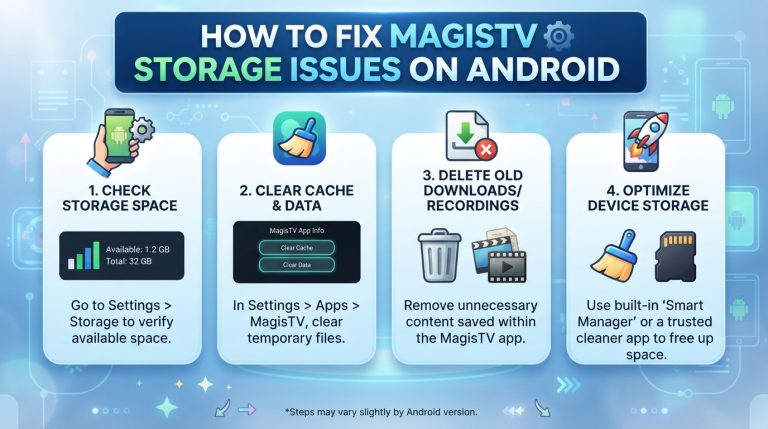
Check Available Storage
Low storage space can interfere with app installation and operation.
Free up storage by:
- Deleting unused apps.
- Removing unnecessary downloads.
- Clearing temporary files.
- Deleting duplicate media.
Keeping at least 2–3 GB of free storage is recommended.
Disable VPN or Proxy
Some VPN services can interfere with device verification.
To test:
- Disconnect the VPN.
- Disable any proxy settings.
- Restart MagisTV.
- Check whether the error disappears.
If the app works normally afterward, your VPN settings may have been causing the issue.
Try Another Device
If MagisTV continues to display the unsupported device message, install the app on another compatible Android phone, tablet, or Android TV.
If it works on another device, the issue is likely related to the compatibility of your current device.
Check for Custom ROM Issues
If you’re using a custom Android ROM, some system components required by MagisTV may be missing or modified.
Installing the official firmware supplied by your device manufacturer can improve compatibility and resolve the unsupported device error.
Perform a Factory Reset (Last Resort)
If the error appeared after major software changes and nothing else works, a factory reset may resolve the problem.
Before resetting:
- Back up your important data.
- Charge your device.
- Make sure you know your account credentials.
After the reset:
- Set up your device.
- Install the latest MagisTV APK.
- Sign in to your account.
Only perform a factory reset if all other troubleshooting methods have failed.
Contact MagisTV Support
If you’ve tried every solution and the unsupported device error still appears, contact MagisTV support.
Include the following information:
- Device model
- Android version
- MagisTV version
- Screenshot of the error message
- Whether your device is rooted or using a custom ROM
- The troubleshooting steps you’ve already completed
Providing detailed information will help the support team determine whether the issue is caused by device compatibility or another technical problem.