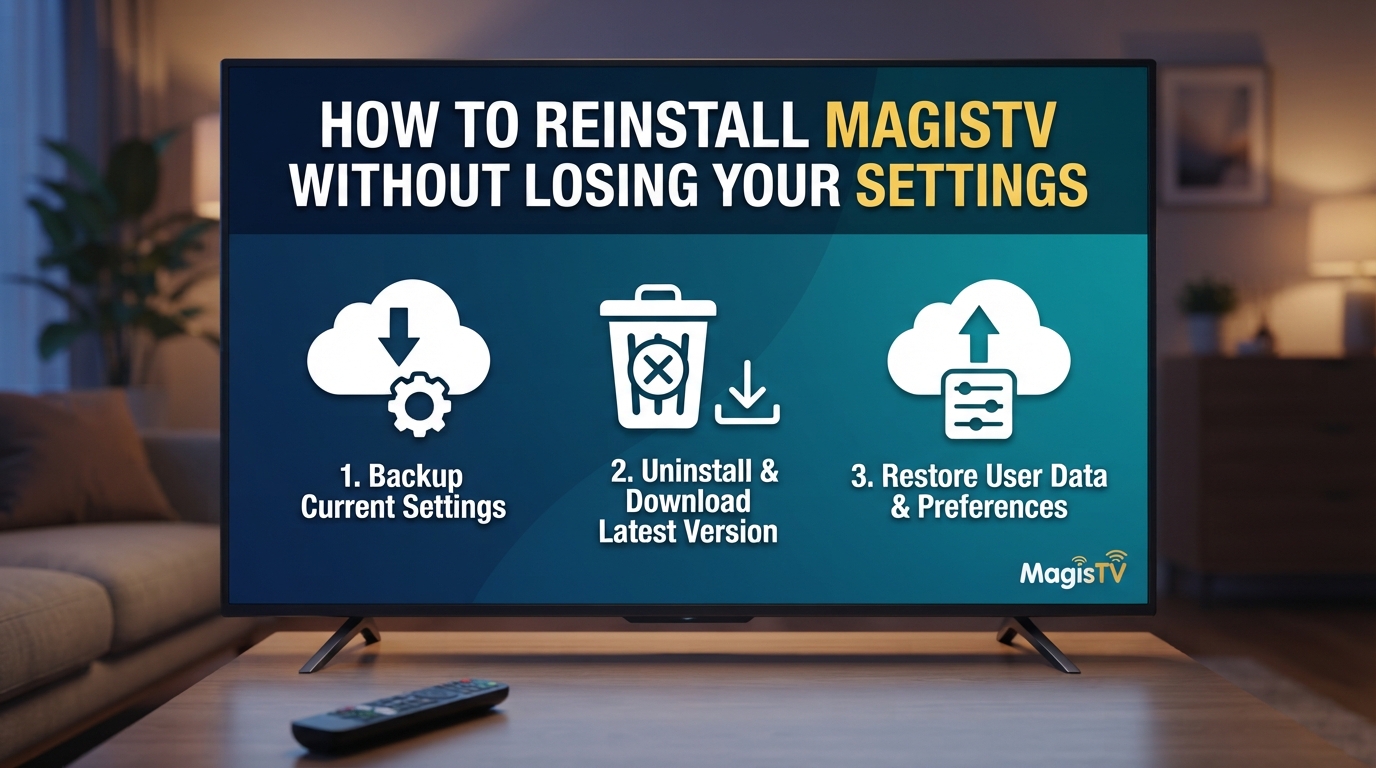
How to Reinstall MagisTV Without Losing Your Settings
Reinstalling MagisTV is one of the best ways to fix issues like app crashes, buffering, playback errors, or freezing. However, many users worry that reinstalling the app will erase their settings or account information. The good news is that if your settings and account are linked to MagisTV’s servers, you can usually restore them after signing in again. This guide explains how to reinstall MagisTV safely while minimizing the risk of losing your preferences.
Why Reinstall MagisTV?
Reinstalling the app can fix several common problems, including:
- Frequent app crashes
- Black screen errors
- Playback failed messages
- Login issues
- Slow performance
- App freezing
- Corrupted installation files
- Failed updates
A clean installation replaces damaged app files and often improves overall performance.
Check Whether Your Account Is Synced
Before uninstalling MagisTV, make sure you know the login credentials for your account.
Verify the following:
- Your email address or username.
- Your password.
- Your subscription status, if applicable.
If your settings are stored on MagisTV’s servers, signing back into the same account should restore them.
Save Important Information
Although many settings may sync automatically, it’s a good idea to make a note of any custom preferences before reinstalling.
You may want to record:
- Login details
- Favorite channels
- Preferred language
- Subtitle preferences
- Playback settings
Taking screenshots of important settings can make it easier to restore them later if needed.
Download the Latest MagisTV APK
To avoid reinstalling an outdated version, download the latest available MagisTV APK from a trusted source.
Using the newest version provides:
- Bug fixes
- Better stability
- Improved performance
- Enhanced security
- Compatibility with newer Android versions
Uninstall MagisTV
Remove the existing installation from your device.
To uninstall:
- Open Settings.
- Go to Apps.
- Select MagisTV.
- Tap Uninstall.
- Confirm the action.
This removes the application while preparing your device for a fresh installation.
Restart Your Android Device
Restarting your device clears temporary system files and refreshes Android services.
To restart:
- Hold the Power button.
- Tap Restart.
- Wait until the device finishes rebooting.
Restarting before reinstalling helps prevent installation problems.
Install the Latest APK
After restarting:
- Open your Downloads folder.
- Tap the MagisTV APK file.
- Select Install.
- Wait for the installation to complete.
- Open the application.
If prompted, allow installation from unknown sources before continuing.
Sign In to Your Account
Once MagisTV opens:
- Enter your registered email address or username.
- Type your password.
- Complete the login process.
If your account stores preferences online, many of your settings may automatically reappear after signing in.
Restore Your Preferences
If some settings weren’t restored automatically, configure them again.
Check your:
- Language settings
- Video quality
- Subtitle options
- Notification preferences
- Favorite channels or content lists
Restoring these settings only takes a few minutes.
Clear Cache After Installation
If the app behaves unexpectedly after reinstalling:
- Open Settings.
- Go to Apps.
- Select MagisTV.
- Tap Storage.
- Choose Clear Cache.
This removes temporary files that may interfere with performance.
Update Android Software
Keeping Android updated improves compatibility with the latest MagisTV version.
To check for updates:
- Open Settings.
- Tap System.
- Select Software Update.
- Install any available updates.
- Restart your device.
Running the latest Android version can help prevent future app issues.
Check Your Internet Connection
After reinstalling, ensure you have a stable internet connection before signing in or streaming.
You can improve connectivity by:
- Restarting your Wi-Fi router.
- Switching between Wi-Fi and mobile data.
- Running a speed test.
- Disconnecting unused devices from your network.
A reliable connection helps MagisTV synchronize your account and stream content smoothly.
Avoid Clearing Data Before Uninstalling
If you’re only planning to reinstall the app, avoid manually clearing app data beforehand unless it’s necessary to troubleshoot a specific issue.
Leaving the app data intact until uninstalling may make it easier to recover locally stored preferences, although some data may still be removed during the uninstall process depending on your Android device.
Keep Your Login Credentials Safe
After successfully reinstalling MagisTV, store your login credentials securely.
You can:
- Use a password manager.
- Save your login information in a secure location.
- Keep your recovery email up to date.
Having quick access to your account information makes future reinstalls much easier.
Contact MagisTV Support
If your settings or account information do not return after reinstalling, contact MagisTV support for assistance.
Provide the following details:
- Device model
- Android version
- MagisTV version
- Registered email address or username
- Description of the missing settings
- Troubleshooting steps you’ve already tried
The support team can help determine whether your preferences are linked to your account or if additional steps are needed to restore them.