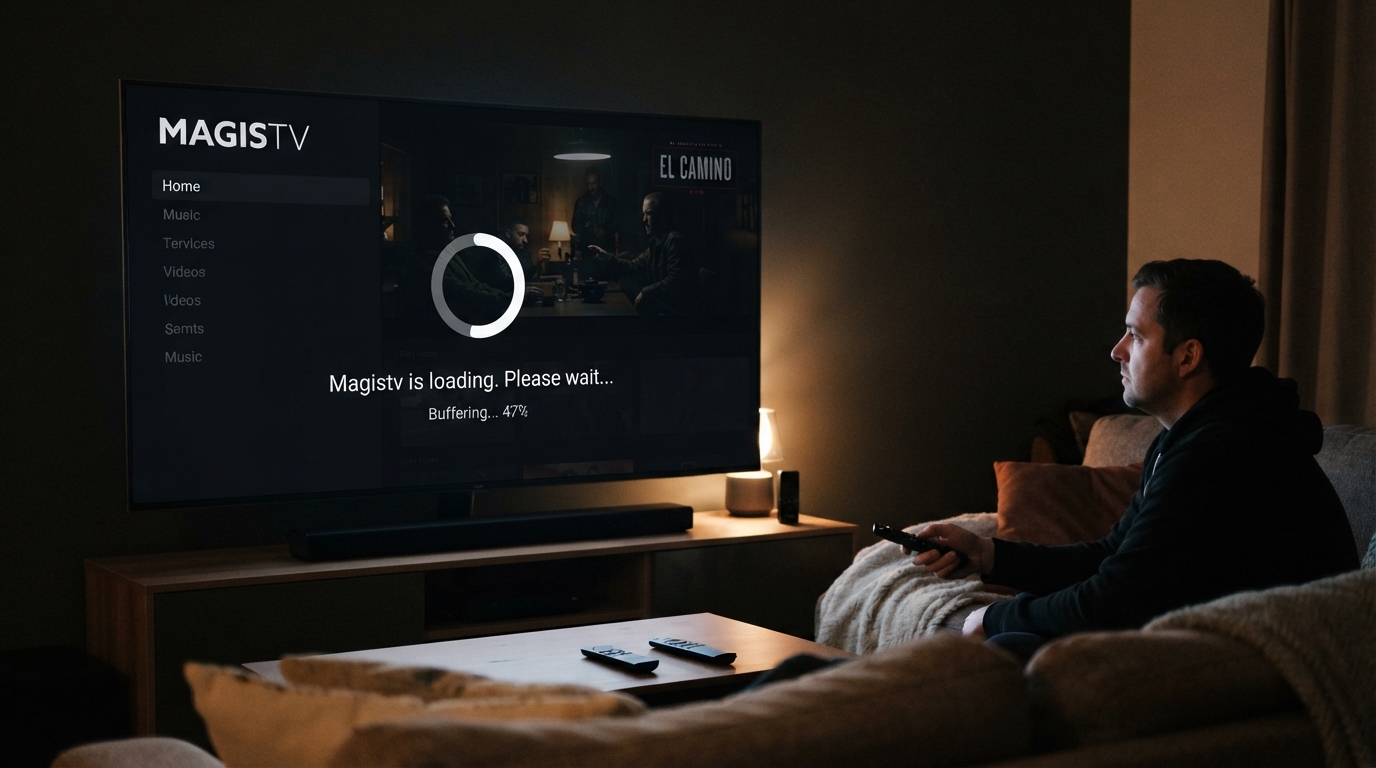
Why Is MagisTV Streaming So Slow?
Slow streaming on MagisTV can be frustrating, especially when you’re trying to watch live TV, movies, or your favorite shows without interruptions. If videos take too long to load, buffer frequently, or play in low quality, the issue is usually related to your internet connection, device performance, app settings, or temporary server problems. This guide explains the most common reasons why MagisTV streams slowly and how you can improve its performance.
Common Reasons Why MagisTV Is Streaming Slowly
Several factors can affect streaming speed, including:
- Slow or unstable internet connection
- Network congestion
- Low device storage
- Too many background apps
- Outdated MagisTV version
- Corrupted cache files
- VPN connection issues
- Temporary server overload
Identifying the cause is the first step toward fixing the problem.
Check Your Internet Speed
A fast and stable internet connection is essential for smooth streaming.
To test your connection:
- Run an internet speed test.
- Restart your Wi-Fi router if the speed is lower than expected.
- Move closer to your router if you’re using Wi-Fi.
- Disconnect devices that are using large amounts of bandwidth.
Recommended internet speeds:
- 10 Mbps for HD streaming
- 25 Mbps for Full HD streaming
- 50 Mbps or more for 4K streaming
If your connection is slower than recommended, buffering and delays are more likely.
Restart Your Router
Network equipment can slow down after running continuously for long periods.
To restart your router:
- Turn it off.
- Wait for 30 seconds.
- Turn it back on.
- Allow the connection to stabilize.
- Open MagisTV again.
A router restart often improves connection stability.
Clear MagisTV Cache
Over time, cached files can become corrupted and reduce app performance.
To clear the cache:
- Open Settings.
- Go to Apps.
- Select MagisTV.
- Tap Storage.
- Choose Clear Cache.
This removes temporary files without deleting your account information.
Close Background Applications
Too many running apps can consume your device’s RAM and processing power.
Before using MagisTV:
- Close unnecessary applications.
- Pause downloads.
- Stop apps running in the background.
This allows MagisTV to use more system resources.
Free Up Storage Space
A device with very little free storage may become slow.
To free up space:
- Delete unused apps.
- Remove unnecessary downloads.
- Delete duplicate photos and videos.
- Clear temporary files.
Keeping at least 2–3 GB of free storage helps improve performance.
Update MagisTV
Older versions of the app may contain bugs that affect streaming.
Updating MagisTV provides:
- Bug fixes
- Improved streaming performance
- Better compatibility
- Security enhancements
- Increased stability
Always use the latest available version.
Update Android Software
Keeping Android updated improves compatibility with streaming applications.
To update:
- Open Settings.
- Tap System.
- Select Software Update.
- Install available updates.
- Restart your device.
System updates often improve memory management and network performance.
Lower the Video Quality
If your internet connection is slow, reducing the streaming quality can help.
When available, choose a lower resolution such as:
- 480p
- 720p
Lower resolutions require less bandwidth and can reduce buffering.
Disable VPN
A VPN can reduce internet speed because your traffic is routed through another server.
To test:
- Disconnect your VPN.
- Restart MagisTV.
- Stream the same content again.
If streaming improves, try a faster VPN server or use the app without a VPN when appropriate.
Switch to a Different Network
If possible, test MagisTV on another internet connection.
You can try:
- Another Wi-Fi network.
- Mobile data.
- A different hotspot.
If the app performs better on another network, the issue is likely related to your original internet connection.
Check for Server Issues
Sometimes the slowdown is caused by temporary server congestion.
If many users are streaming at the same time or the service is undergoing maintenance, you may experience:
- Slow loading
- Frequent buffering
- Delayed playback
In these cases, waiting a while and trying again later may resolve the issue.
Restart Your Device
Restarting your device refreshes system resources and network connections.
To restart:
- Press and hold the Power button.
- Tap Restart.
- Wait for the device to reboot.
- Launch MagisTV again.
This simple step can fix temporary performance issues.
Reinstall MagisTV
If none of the above solutions work, reinstall the app.
Steps:
- Uninstall MagisTV.
- Restart your device.
- Install the latest APK.
- Sign in to your account.
A fresh installation removes corrupted files that may be slowing down the app.
Optimize Your Wi-Fi Signal
Weak Wi-Fi coverage can reduce streaming performance.
To improve your signal:
- Place your router in a central location.
- Reduce obstacles between your router and device.
- Use the 5 GHz Wi-Fi band if supported.
- Restart your router regularly.
A stronger signal results in smoother playback and fewer interruptions.
Contact MagisTV Support
If MagisTV continues to stream slowly after trying all the above solutions, contact MagisTV support.
Provide the following information:
- Device model
- Android version
- MagisTV version
- Internet speed
- Type of connection (Wi-Fi or mobile data)
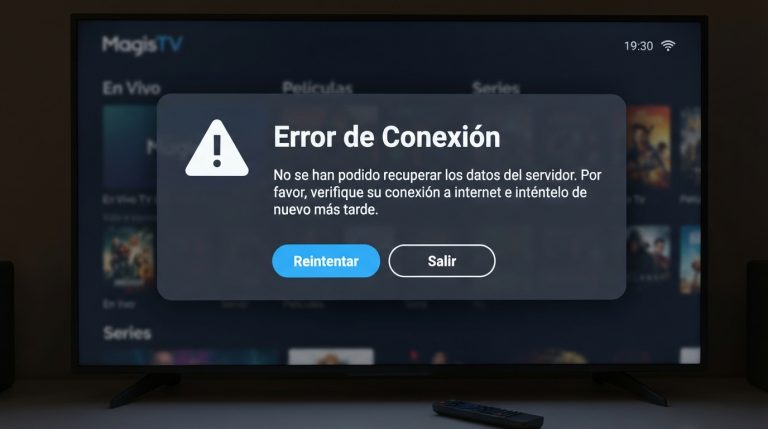
- Screenshot of any error messages
- Troubleshooting steps you’ve already completed
Providing detailed information will help the support team diagnose the issue and recommend the most suitable solution.