How to Watch MagisTV on PC Without Errors
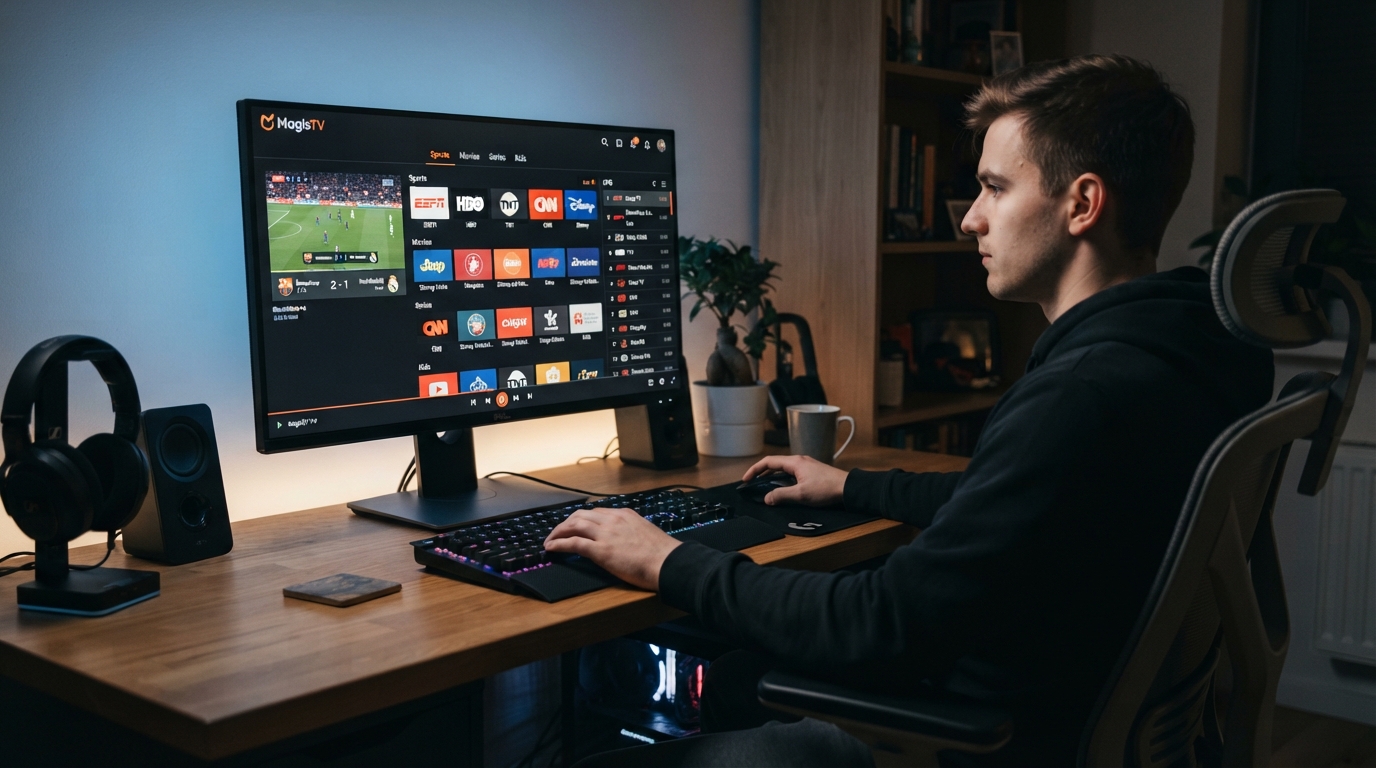
MagisTV is primarily designed for Android devices, but many users prefer watching their favorite live TV channels, movies, and TV shows on a larger PC screen. Since there is no official Windows version of MagisTV, the most reliable way to use it is through an Android emulator. If you’ve experienced installation issues, playback errors, crashes, or buffering, this guide will show you how to install and use MagisTV on your PC without errors.
Can You Use MagisTV on a PC?
Yes, you can use MagisTV on a Windows PC by installing an Android emulator. An emulator creates a virtual Android environment that allows Android apps to run on Windows.
Some popular Android emulators include:
- BlueStacks
- LDPlayer
- NoxPlayer
- MEmu Play
Using an updated emulator significantly improves compatibility and streaming performance.
Check Your PC Requirements
Before installing MagisTV, make sure your computer meets the recommended requirements.
Recommended specifications:
- Windows 10 or Windows 11
- At least 8 GB RAM
- Multi-core processor
- 10 GB or more of free storage
- Stable broadband internet connection
Meeting these requirements helps ensure smoother streaming.
Download a Reliable Android Emulator
Choose a trusted Android emulator and install the latest version.
Benefits of using the latest emulator include:
- Better compatibility
- Faster performance
- Improved graphics
- Fewer crashes
- Better support for Android apps
After installation, restart your PC if prompted.
Enable Hardware Virtualization
Hardware virtualization improves emulator performance.
To enable it:
- Restart your computer.
- Enter the BIOS or UEFI settings.
- Enable Intel VT-x or AMD-V.
- Save the changes.
- Restart Windows.
Most emulators perform much better when virtualization is enabled.
Download the Latest MagisTV APK
Always use the latest available version of the MagisTV APK.
Using the newest version provides:
- Bug fixes
- Better compatibility
- Improved security
- Enhanced streaming stability
- Better support for modern Android versions
Avoid downloading modified or outdated APK files from unreliable sources.
Install MagisTV Inside the Emulator
After downloading the APK:
- Open your Android emulator.
- Select the Install APK option.
- Choose the downloaded MagisTV APK.
- Wait for the installation to finish.
- Launch the application.
Installation usually takes only a few minutes.
Sign In to Your Account
Once the app opens:
- Enter your login credentials.
- Sign in to your MagisTV account.
- Wait for your account to synchronize.
If your account stores preferences online, many settings will automatically be restored.
Configure Emulator Performance
If streaming feels slow, adjust your emulator settings.
You can improve performance by:
- Allocating more RAM.
- Increasing CPU cores.
- Enabling hardware acceleration.
- Updating the graphics renderer.
These settings help reduce lag and improve playback quality.
Keep Your Internet Connection Stable
Streaming requires a fast and stable internet connection.
For better performance:
- Use Ethernet whenever possible.
- Restart your router regularly.
- Disconnect unused devices.
- Avoid downloading large files while streaming.
Recommended internet speeds:
- 10 Mbps for HD
- 25 Mbps for Full HD
- 50 Mbps or more for 4K
Update Graphics Drivers
Outdated graphics drivers can cause:
- Black screens
- Playback failures
- Screen flickering
- Lag
Install the latest graphics drivers for your NVIDIA, AMD, or Intel graphics card to improve video playback.
Clear MagisTV Cache
If the app starts behaving unexpectedly:
- Open Android Settings inside the emulator.
- Go to Apps.
- Select MagisTV.
- Tap Storage.
- Choose Clear Cache.
This removes temporary files without deleting your account.
Clear App Data
If problems continue:
- Open Settings.
- Go to Apps.
- Select MagisTV.
- Tap Storage.
- Choose Clear Data.
You’ll need to log in again after clearing the data.
Update the Emulator Regularly
Android emulators receive frequent updates that improve compatibility and performance.
Keeping your emulator updated helps:
- Reduce crashes
- Improve stability
- Support newer Android applications
- Fix security issues
Check for updates periodically.
Update Windows
Keeping Windows updated improves compatibility with Android emulators.
To update:
- Open Settings.
- Select Windows Update.
- Click Check for Updates.
- Install available updates.
- Restart your PC.
Updated system files help improve overall performance.
Close Unnecessary Programs
Running many applications simultaneously can reduce emulator performance.
Before opening MagisTV:
- Close unnecessary software.
- Pause downloads.
- Exit memory-intensive programs.
This allows the emulator to use more system resources.
Disable VPN If Necessary
If MagisTV cannot connect or playback fails:
- Disconnect your VPN.
- Restart the emulator.
- Open MagisTV again.
If the issue disappears, try using a different VPN server or protocol.
Reinstall MagisTV
If you’ve tried all other solutions and the app still doesn’t work correctly:
- Uninstall MagisTV from the emulator.
- Restart the emulator.
- Install the latest APK.
- Sign in again.
A fresh installation often resolves persistent issues caused by corrupted files.
Contact MagisTV Support
If you’re still unable to watch MagisTV on your PC without errors, contact MagisTV support.
Include the following details:
- Windows version
- PC specifications
- Emulator name and version
- MagisTV version
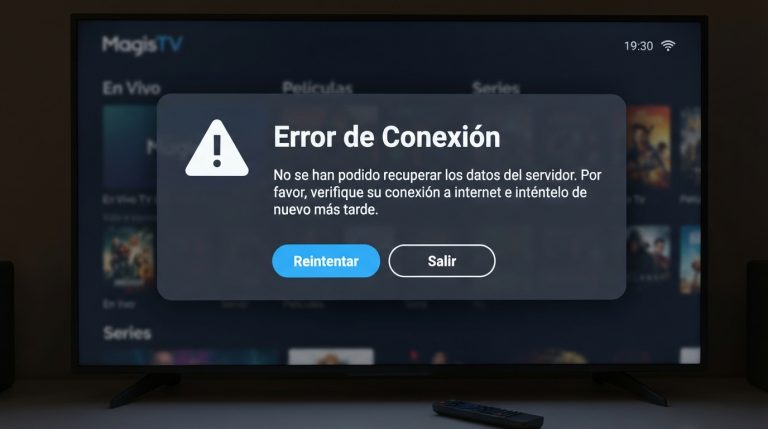
- Screenshot of the error message
- Description of the issue
- Troubleshooting steps you’ve already tried
Providing complete information will help the support team identify the problem and recommend the most suitable solution.