How to Fix MagisTV Not Working on Android
If MagisTV is not working on your Android device, you’re not alone. Many users experience issues such as the app crashing, freezing, showing a black screen, or failing to load content. Fortunately, most of these problems can be fixed with a few simple troubleshooting steps. This guide explains the most common causes and provides practical solutions to get MagisTV working again.
Why Is MagisTV Not Working on Android?
MagisTV may stop working for several reasons, including:
- Outdated APK version
- Poor or unstable internet connection
- Corrupted app cache or data
- Low device storage
- Android compatibility issues
- Temporary server outages
- Installation errors
- VPN or security restrictions
Identifying the exact cause will help you apply the right solution.
Check Your Internet Connection
A weak or unstable internet connection is one of the most common reasons MagisTV fails to stream content properly. Make sure your Wi-Fi or mobile data is working correctly before trying other fixes.
You can improve your connection by:
- Restarting your Wi-Fi router.
- Switching between Wi-Fi and mobile data.
- Running a speed test.
- Closing downloads or other apps using your bandwidth.
For smooth streaming, aim for at least 10 Mbps for HD content and 25 Mbps or more for Full HD streams.
Restart Your Android Device
Temporary system glitches can prevent MagisTV from functioning correctly. Restarting your Android phone or tablet refreshes system processes and often resolves minor software issues.
Simply restart your device, wait until it fully boots up, and launch MagisTV again.
Update MagisTV to the Latest Version
Using an outdated version of MagisTV may lead to crashes, playback problems, or compatibility issues with newer Android versions.
Updating the app provides:
- Bug fixes
- Better performance
- Improved security
- Compatibility with the latest Android updates
- New features and enhancements
Always download the latest APK from a trusted source.
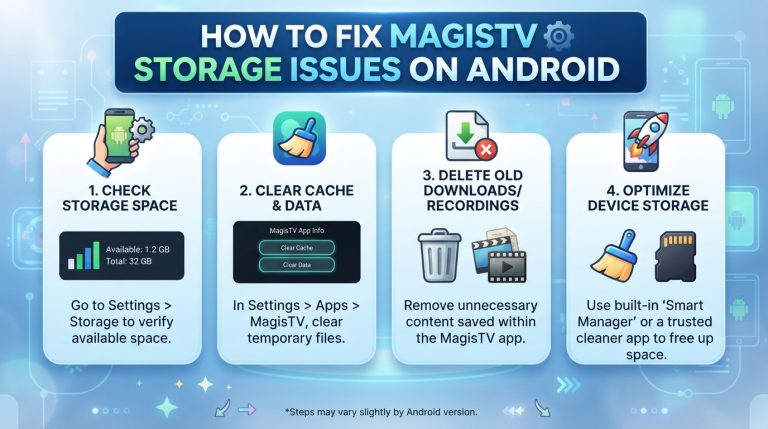
Clear MagisTV Cache
Over time, cached files can become corrupted and prevent the app from loading correctly.
To clear the cache:
- Open Settings on your Android device.
- Go to Apps.
- Select MagisTV.
- Tap Storage.
- Tap Clear Cache.
This removes temporary files without deleting your account information.
Clear App Data
If clearing the cache doesn’t solve the problem, clearing app data may help.
Steps:
- Open Settings.
- Go to Apps.
- Select MagisTV.
- Open Storage.
- Tap Clear Data.
Keep in mind that this will reset the app, and you may need to sign in again.
Check Device Storage
Insufficient storage can affect app performance and prevent updates or downloads.
To free up storage:
- Delete unused apps.
- Remove unnecessary photos and videos.
- Clear old downloads.
- Empty the recycle bin if available.
Maintaining at least 2–3 GB of free storage helps Android apps run more smoothly.
Reinstall MagisTV
Corrupted installation files can cause the app to stop working. Reinstalling MagisTV replaces damaged files with a fresh installation.
To reinstall:
- Uninstall MagisTV.
- Restart your device.
- Download the latest APK.
- Install the application.
- Open MagisTV and log in.
This resolves many installation-related issues.
Check Android Compatibility
Older versions of Android may not support the latest MagisTV release. Likewise, newer Android versions may require an updated APK.
Verify that:
- Your Android version meets the app’s requirements.
- Your device has sufficient RAM and storage.
- System software is up to date.
Updating your Android device can improve compatibility and stability.
Disable VPN or Proxy
Some VPN services or proxy connections can interfere with streaming servers.
If you’re using a VPN:
- Disconnect it temporarily.
- Restart MagisTV.
- Check whether the app works normally.
If the issue disappears, try using a different VPN server or disabling the VPN while streaming.
Check MagisTV Server Status
Sometimes the issue is not on your device. The MagisTV servers may be undergoing maintenance or experiencing temporary outages.
If multiple users report the same problem, waiting a while and trying again later is often the best solution.
Restart Your Wi-Fi Router
Network issues can sometimes be resolved by restarting your router.
To do this:
- Turn off the router.
- Wait for about 30 seconds.
- Turn it back on.
- Reconnect your Android device.
A fresh network connection can eliminate temporary connectivity problems.
Disable Battery Optimization
Battery optimization settings may restrict MagisTV from running properly in the background.
To disable battery optimization:
- Open Settings.
- Go to Battery.
- Select Battery Optimization.
- Find MagisTV.
- Choose Don’t Optimize.
This allows the app to operate without unnecessary background restrictions.
Update Android System Software
Keeping Android updated ensures better compatibility with streaming applications.
To check for updates:
- Open Settings.
- Tap System.
- Select Software Update.
- Install any available updates.
- Restart your device.
System updates often fix bugs that affect third-party applications.
Force Stop the App
If MagisTV becomes unresponsive, force stopping it can help.
Steps:
- Open Settings.
- Tap Apps.
- Select MagisTV.
- Tap Force Stop.
- Reopen the application.
This completely closes the app and starts a fresh session.
Scan Your Device for Malware
Malicious software can interfere with streaming apps and reduce overall device performance.
Use a trusted antivirus application to scan your Android device and remove any threats before launching MagisTV again.
Contact MagisTV Support
If none of the above methods work, the issue may be account-related or caused by a server-side problem.
When contacting support, include:
- Your Android version
- Device model
- MagisTV version
- Screenshots of any error messages
- A description of the issue
Providing detailed information helps the support team resolve your problem more quickly.