How to Fix MagisTV Storage Issues on Android
If MagisTV is showing storage-related errors or running slowly on your Android device, you’re not alone. Storage issues can prevent the app from installing updates, downloading content, loading channels, or streaming videos smoothly. These problems are usually caused by low internal storage, corrupted cache files, or too many unnecessary files stored on your device. Fortunately, you can resolve most storage issues with a few simple troubleshooting steps.
Why Does MagisTV Have Storage Issues?
Several factors can lead to storage-related problems, including:
- Low internal storage
- Corrupted cache files
- Excessive app data
- Large download folders
- Too many unused apps
- Outdated Android software
- Insufficient RAM
- Failed app updates
Identifying the cause will help you choose the most effective solution.
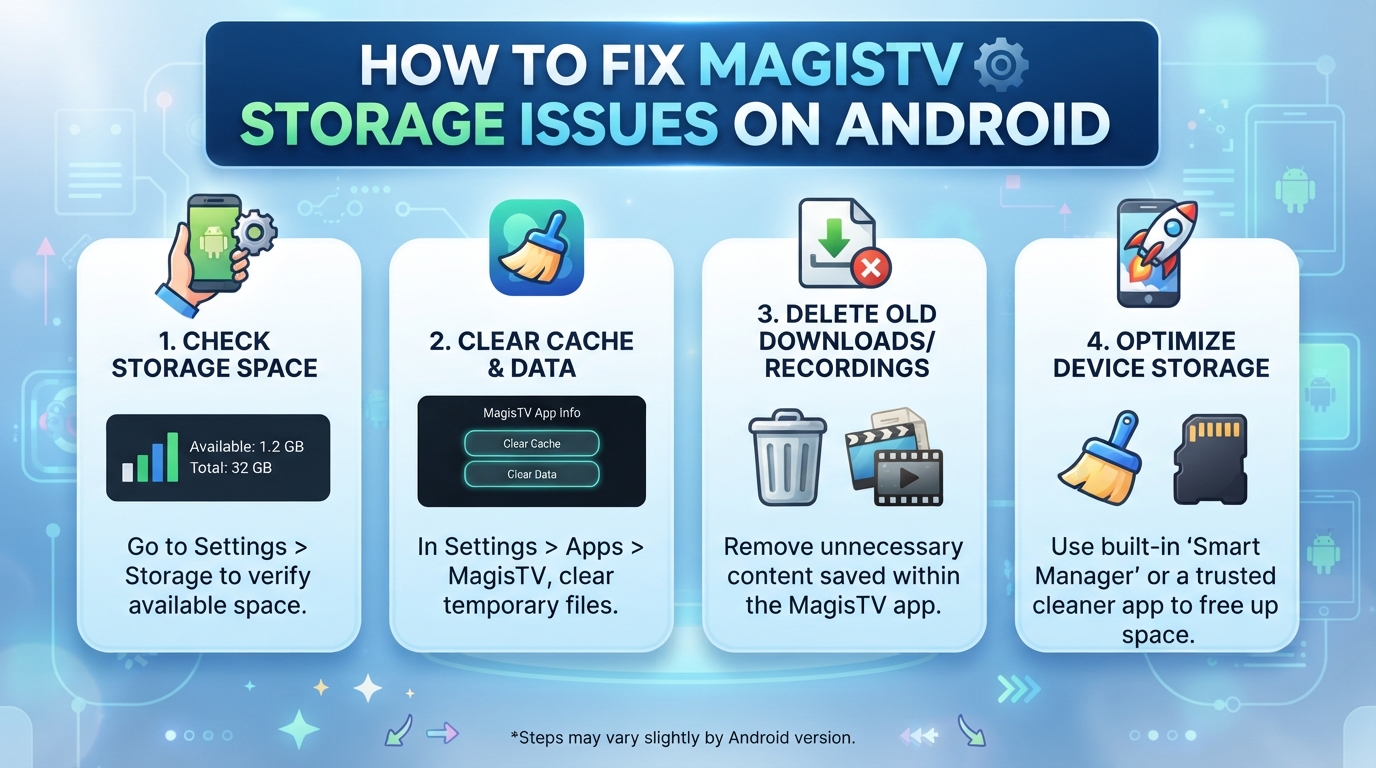
Check Available Storage Space
The first step is to check how much free storage your device has.
To check storage:
- Open Settings.
- Tap Storage or Device Care.
- View the available internal storage.
For the best performance, keep at least 2–3 GB of free storage available.
Clear MagisTV Cache
Cached files can grow over time and occupy valuable storage.
To clear the cache:
- Open Settings.
- Go to Apps.
- Select MagisTV.
- Tap Storage.
- Select Clear Cache.
This removes temporary files without deleting your account or personal settings.
Clear App Data
If the app continues to experience storage issues, clearing its data may help.
Steps:
- Open Settings.
- Navigate to Apps.
- Select MagisTV.
- Tap Storage.
- Choose Clear Data.
This resets the application, so you’ll need to sign in again afterward.
Delete Unnecessary Files
Removing unnecessary files is one of the quickest ways to free up storage.
Delete items such as:
- Old downloads
- Duplicate photos
- Large videos
- Unused documents
- Temporary files
Regular cleanup improves overall device performance.
Uninstall Unused Apps
Many Android devices contain apps that are rarely used.
Review your installed applications and uninstall those you no longer need to free up additional storage space.
Move Photos and Videos to Cloud Storage
Media files often consume the most storage.
Consider moving:
- Photos
- Videos
- Screenshots
- Screen recordings
to a cloud storage service or an external storage device to create more free space.
Empty the Recycle Bin
Many gallery and file manager apps keep deleted files in a recycle bin for several days.
Open your gallery or file manager and permanently delete these files to recover additional storage.
Restart Your Android Device
Restarting your phone clears temporary system files and refreshes Android processes.
To restart:
- Press and hold the Power button.
- Tap Restart.
- Wait for the device to reboot.
After restarting, check whether MagisTV performs better.
Update MagisTV
Older versions of the app may contain storage-related bugs.
Updating MagisTV provides:
- Bug fixes
- Better storage management
- Improved performance
- Increased stability
- Enhanced compatibility
Always install the latest version available.
Update Android Software
Keeping Android updated improves memory management and storage performance.
To update:
- Open Settings.
- Tap System.
- Select Software Update.
- Install available updates.
- Restart your device.
Updated system software often fixes performance and storage-related issues.
Use an SD Card If Supported
If your Android device supports expandable storage, you can move compatible apps and media files to an SD card.
You can also store:
- Photos
- Videos
- Music
- Documents
on the SD card to free up internal storage.
Reinstall MagisTV
If storage problems persist, reinstalling the app may remove corrupted files.
To reinstall:
- Uninstall MagisTV.
- Restart your Android device.
- Install the latest APK.
- Open the app.
- Sign in to your account.
A fresh installation often resolves storage-related issues caused by damaged app files.
Close Background Apps
Too many running applications can consume both storage resources and memory.
Before using MagisTV:
- Close unnecessary apps.
- Stop large downloads.
- Disable unused background services.
This helps improve the app’s overall performance.
Scan Your Device for Malware
Malware can create unnecessary files and reduce available storage.
Use a trusted antivirus application to:
- Perform a full device scan.
- Remove detected threats.
- Delete suspicious files.
Keeping your device clean improves both storage and performance.
Perform Regular Storage Maintenance
To prevent future storage problems:
- Clear the app cache every few weeks.
- Delete unused downloads regularly.
- Uninstall apps you no longer use.
- Keep Android and MagisTV updated.
- Maintain at least 2–3 GB of free storage.
Routine maintenance helps MagisTV run smoothly over the long term.
Contact MagisTV Support
If you’ve tried all the above solutions and MagisTV still reports storage issues, contact MagisTV support.
Include the following information:
- Android version
- Device model
- Available storage space
- MagisTV version
- Screenshot of the error message
- Troubleshooting steps you’ve already completed
Providing detailed information will help the support team identify the cause of the problem and recommend the appropriate solution.