MagisTV Stuck on Loading Screen – Step-by-Step Solution
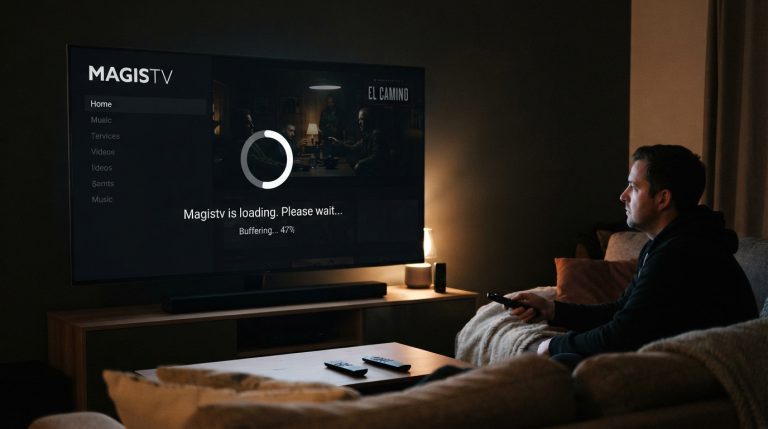
If MagisTV gets stuck on the loading screen and never opens, you’re not alone. Many users experience this issue after installing the app, updating it, or launching it for the first time. In most cases, the problem is caused by a poor internet connection, corrupted cache files, an outdated app version, or temporary server issues. Fortunately, you can usually fix the problem in just a few minutes by following the troubleshooting steps below.
Why Is MagisTV Stuck on the Loading Screen?
The loading screen problem can occur due to several reasons, including:
- Slow or unstable internet connection
- Corrupted cache or app data
- Outdated MagisTV APK
- Temporary server outage
- Insufficient device storage
- Android compatibility issues
- VPN or proxy interference
- Corrupted installation files
Once you know the possible cause, it’s much easier to fix the issue.
Check Your Internet Connection
MagisTV requires a stable internet connection to load content and connect to its servers.
Try these steps:
- Restart your Wi-Fi router.
- Switch between Wi-Fi and mobile data.
- Run an internet speed test.
- Disconnect other devices using your network.
For smooth performance, use a stable connection with at least 10 Mbps for HD streaming.
Restart the App
A temporary app glitch can sometimes cause the loading screen to freeze.
To restart MagisTV:
- Close the app completely.
- Remove it from the Recent Apps list.
- Wait for 10–15 seconds.
- Open the app again.
This refreshes the application and often resolves minor startup issues.
Restart Your Android Device
Restarting your device clears temporary system errors that may prevent MagisTV from loading.
To restart:
- Press and hold the Power button.
- Tap Restart.
- Wait until the device boots up completely.
- Launch MagisTV again.
Many loading issues are resolved after a simple restart.
Clear MagisTV Cache
Corrupted cache files can stop the app from loading properly.
To clear the cache:
- Open Settings.
- Go to Apps.
- Select MagisTV.
- Tap Storage.
- Choose Clear Cache.
Open the app again after clearing the cache.
Clear App Data
If clearing the cache doesn’t solve the problem, reset the application’s data.
Steps:
- Open Settings.
- Navigate to Apps.
- Select MagisTV.
- Tap Storage.
- Select Clear Data.
You’ll need to sign in again after completing this step.
Update MagisTV
Using an outdated version of MagisTV may cause startup problems.
Updating the app provides:
- Bug fixes
- Better stability
- Improved compatibility
- Enhanced performance
- Security updates
Always install the latest version available.
Check Available Storage
Low storage space can prevent apps from starting properly.
To free up storage:
- Delete unused apps.
- Remove unnecessary downloads.
- Delete duplicate photos and videos.
- Clear temporary files.
Keeping at least 2–3 GB of free storage improves overall app performance.
Disable VPN or Proxy
Some VPN servers can interfere with MagisTV’s connection to its servers.
To test:
- Disconnect your VPN.
- Disable any proxy settings.
- Restart the app.
If MagisTV loads normally, your VPN configuration may be causing the issue.
Check MagisTV Server Status
Sometimes the problem isn’t on your device.
If MagisTV’s servers are undergoing maintenance or experiencing high traffic, the app may remain on the loading screen until the service is restored.
If other users are reporting the same issue, waiting a while and trying again later is often the best solution.
Force Stop the App
Force stopping MagisTV completely closes all active processes.
To force stop:
- Open Settings.
- Go to Apps.
- Select MagisTV.
- Tap Force Stop.
- Reopen the app.
This starts a fresh app session.
Update Android Software
Running an outdated Android version can create compatibility problems.
To update:
- Open Settings.
- Tap System.
- Select Software Update.
- Install any available updates.
- Restart your device.
System updates improve app compatibility and overall performance.
Close Background Applications
Too many apps running in the background can consume memory and slow down MagisTV.
Before opening the app:
- Close unnecessary applications.
- Pause large downloads.
- Stop memory-intensive background processes.
This frees up system resources for smoother operation.
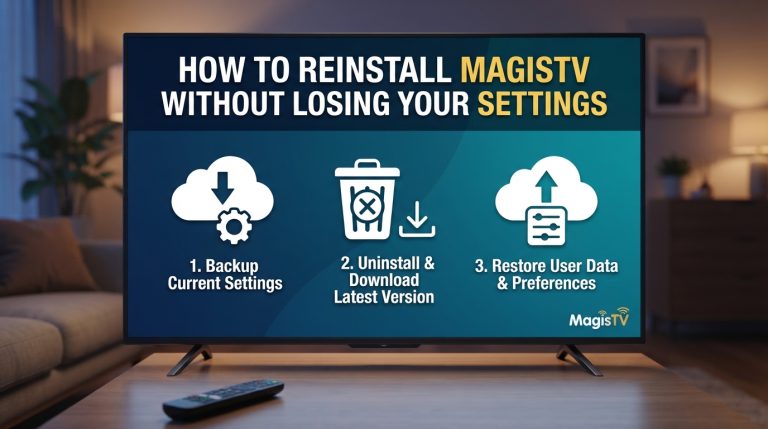
Reinstall MagisTV
If the loading screen issue continues, reinstalling the app may solve the problem.
To reinstall:
- Uninstall MagisTV.
- Restart your Android device.
- Install the latest APK.
- Open the app.
- Sign in to your account.
A fresh installation replaces damaged files that may be causing startup issues.
Scan Your Device for Malware
Malware can interfere with app performance and network communication.
Use a trusted antivirus application to:
- Perform a full device scan.
- Remove detected threats.
- Restart your device.
A clean device helps ensure MagisTV runs smoothly.
Contact MagisTV Support
If you’ve tried all of the above solutions and MagisTV is still stuck on the loading screen, contact MagisTV support.
Provide the following details:
- Android version
- Device model
- MagisTV version
- Screenshot of the loading screen
- Available storage space
- Internet connection type
- Troubleshooting steps you’ve already completed
Providing complete information will help the support team diagnose the issue and recommend the most appropriate solution.