How to Fix MagisTV on Windows 11
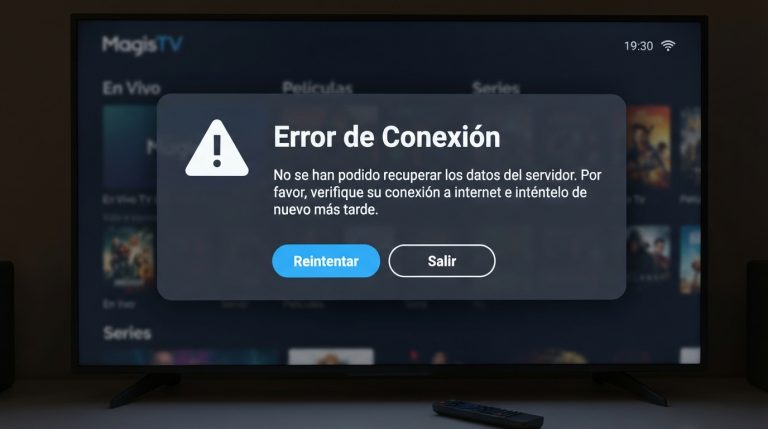
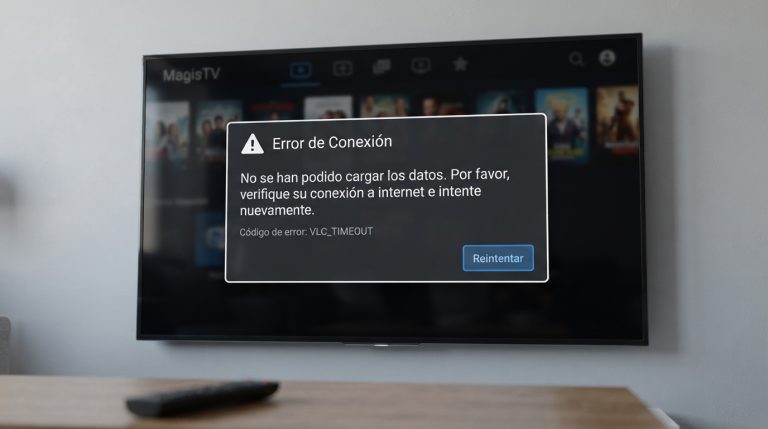
Although MagisTV is designed for Android devices, many users run it on Windows 11 using an Android emulator. If MagisTV isn’t working properly on your PC, you may encounter issues such as the app not opening, black screens, login failures, playback errors, or constant freezing. Most of these problems are caused by outdated emulators, insufficient system resources, incompatible settings, or corrupted installation files. This guide explains the best ways to fix MagisTV on Windows 11.
Why Is MagisTV Not Working on Windows 11?
The issue may occur due to:
- Outdated Android emulator
- Corrupted MagisTV APK
- Insufficient RAM
- Virtualization disabled
- Graphics driver issues
- Slow internet connection
- Outdated Windows 11
- Emulator compatibility problems
Identifying the cause will help you apply the correct solution.
Use a Compatible Android Emulator
MagisTV does not have a native Windows version, so you’ll need an Android emulator such as BlueStacks, LDPlayer, NoxPlayer, or MEmu to run it. Using the latest version of a compatible emulator improves stability and performance.
Restart Your Computer
Temporary Windows glitches can affect both the emulator and MagisTV.
To restart:
- Save your work.
- Click the Start menu.
- Select Power.
- Click Restart.
After Windows restarts, launch the emulator and open MagisTV again.
Update Your Android Emulator
Older emulator versions may not support the latest MagisTV APK.
Updating the emulator provides:
- Better compatibility
- Bug fixes
- Improved graphics performance
- Enhanced stability
- Better Windows 11 support
Always install the latest available emulator version.
Download the Latest MagisTV APK
Using an outdated or corrupted APK can prevent the app from working correctly.
To fix this:
- Delete the existing APK file.
- Download the latest version from a trusted source.
- Install it inside your emulator.
A fresh APK often resolves installation and startup problems.
Enable Hardware Virtualization
Most Android emulators perform better when Intel VT-x or AMD-V virtualization is enabled in your computer’s BIOS or UEFI settings.
Enabling virtualization can:
- Improve emulator speed
- Reduce lag
- Fix startup issues
- Improve streaming performance
Many emulator vendors recommend enabling virtualization for the best experience.
Allocate More RAM and CPU
If the emulator freezes or runs slowly:
- Open your emulator settings.
- Increase RAM allocation if your PC has enough memory.
- Increase CPU cores if available.
- Restart the emulator.
Providing more system resources can significantly improve performance.
Update Graphics Drivers
Outdated graphics drivers can cause:
- Black screen errors
- Playback failures
- Lag
- App crashes
Install the latest graphics driver for your NVIDIA, AMD, or Intel GPU and restart your computer afterward.
Change Graphics Renderer
If videos don’t play correctly inside the emulator:
- Open the emulator settings.
- Locate Graphics.
- Switch between OpenGL and DirectX (or Vulkan if supported).
- Restart the emulator.
Changing the graphics renderer often fixes display issues. Community troubleshooting for BlueStacks has also reported success with OpenGL and sufficient RAM allocation for MagisTV.
Check Your Internet Connection
Streaming requires a stable connection.
Try these steps:
- Restart your router.
- Use an Ethernet connection if possible.
- Disconnect unnecessary devices.
- Run an internet speed test.
A faster and more stable connection reduces buffering and playback errors.
Clear MagisTV Cache
Corrupted cache files can cause unexpected issues.
To clear the cache inside the emulator:
- Open Android Settings.
- Go to Apps.
- Select MagisTV.
- Tap Storage.
- Choose Clear Cache.
Restart the app after clearing the cache.
Clear App Data
If the issue continues:
- Open Android Settings.
- Navigate to Apps.
- Select MagisTV.
- Tap Storage.
- Select Clear Data.
You’ll need to sign in again after resetting the app.
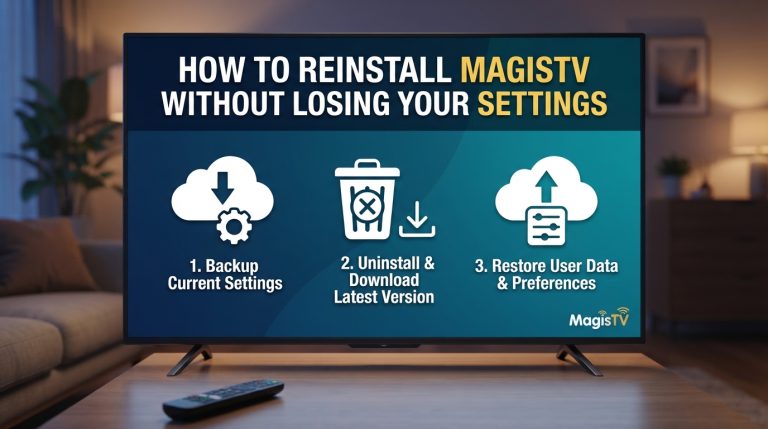
Reinstall MagisTV
A corrupted installation can prevent the app from working.
To reinstall:
- Uninstall MagisTV from the emulator.
- Restart the emulator.
- Install the latest APK.
- Open the app.
- Log in to your account.
A clean installation often fixes persistent problems.
Update Windows 11
Keeping Windows updated improves compatibility and performance.
To update:
- Open Settings.
- Select Windows Update.
- Click Check for Updates.
- Install any available updates.
- Restart your PC.
Updated system files can resolve compatibility issues with Android emulators.
Close Background Applications
Running many applications simultaneously can reduce emulator performance.
Before opening MagisTV:
- Close unnecessary programs.
- Stop large downloads.
- Exit memory-intensive applications.
This frees system resources for smoother streaming.
Disable VPN Temporarily
If MagisTV cannot connect or streams fail to load:
- Disconnect your VPN.
- Restart the emulator.
- Open MagisTV again.
If the app works normally afterward, try another VPN server or protocol.
Check Emulator Compatibility
If one emulator doesn’t work well, try another.
Popular options include:
- BlueStacks
- LDPlayer
- NoxPlayer
- MEmu Play
Different emulators may perform better depending on your PC hardware and Windows configuration.
Contact MagisTV Support
If none of the above methods solve the problem, contact MagisTV support.
Include the following information:
- Windows 11 version
- Computer specifications
- Emulator name and version
- MagisTV version
- Screenshot of the error
- Description of the problem
- Troubleshooting steps you’ve already completed
Providing complete information will help the support team diagnose the issue more efficiently.