How to Update MagisTV to the Latest Version
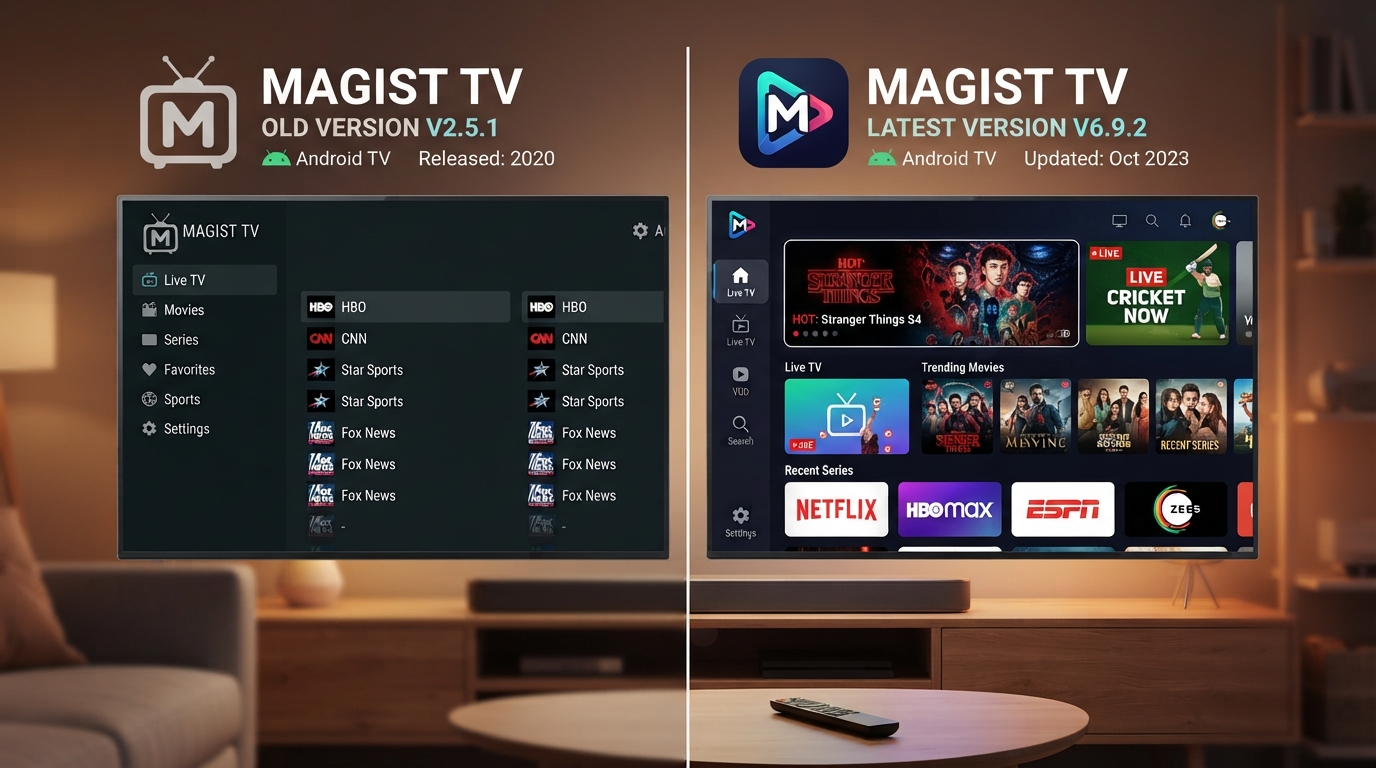
Keeping MagisTV updated ensures you have access to the latest features, security improvements, bug fixes, and better streaming performance. If you’re using an older version, you may experience playback errors, app crashes, buffering, or compatibility issues with newer Android devices. Since MagisTV is distributed as an APK rather than through the Google Play Store, updates usually need to be installed manually unless the app prompts you to update automatically.
Why You Should Update MagisTV
Updating MagisTV provides several benefits:
- Fixes bugs and app crashes
- Improves streaming performance
- Adds new features
- Enhances security
- Improves compatibility with newer Android versions
- Fixes playback and channel loading issues
Using the latest version helps ensure a smoother viewing experience.
Check Your Current Version
Before updating, check which version you’re currently using.
To view your version:
- Open MagisTV.
- Go to Settings.
- Tap About or App Information.
- Note the version number.
If a newer version is available, proceed with the update.
Update Through the In-App Prompt
MagisTV often notifies users when a new version is available.
To update:
- Open MagisTV.
- Wait for the update notification to appear.
- Tap Update.
- Allow the APK to download.
- Install the update.
- Reopen the app.
If you don’t receive an update prompt, you can update manually.
Download the Latest Version
If automatic updates aren’t available, download the latest APK from the official MagisTV download page.
Using the official source helps reduce the risk of installing modified or outdated versions.
Enable Installation from Unknown Sources
Because MagisTV isn’t installed through the Google Play Store, Android may block the installation.
To allow installation:
- Open Settings.
- Go to Security or Privacy.
- Tap Install Unknown Apps.
- Select your browser or file manager.
- Enable Allow from this Source.
After installation, you can disable this permission again if you prefer.
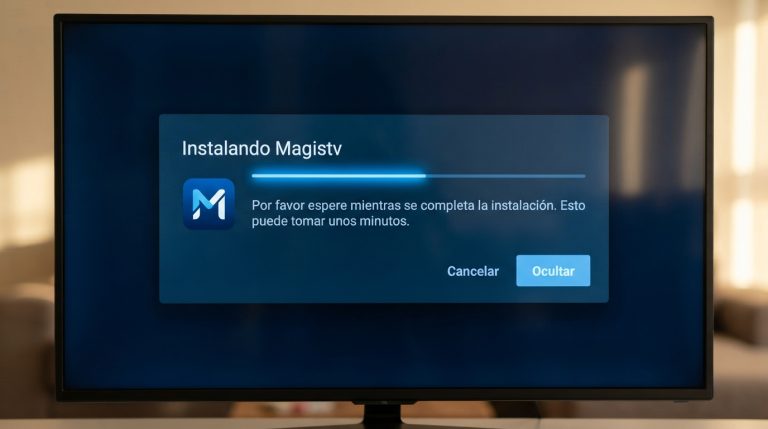
Install the Latest APK
Once the APK has been downloaded:
- Open your Downloads folder.
- Tap the downloaded APK file.
- Select Install.
- Wait for the installation to finish.
- Tap Open.
Your existing app data is usually preserved when updating over the current installation.
Restart Your Device
After updating, restart your Android device.
Restarting helps:
- Load the updated files correctly.
- Clear temporary system errors.
- Improve app performance.
- Prevent unexpected crashes.
Verify the Update
After reopening MagisTV:
- Go to Settings.
- Open About.
- Confirm the displayed version matches the latest installed version.
You can now enjoy the newest features and improvements.
What to Do If the Update Fails
If the installation doesn’t complete successfully, try the following:
- Restart your Android device.
- Delete the downloaded APK and download it again.
- Ensure you have enough free storage.
- Confirm that Install Unknown Apps is enabled.
- Make sure your Android version is compatible with the latest release.
Most update failures are caused by incomplete downloads or insufficient storage.
Fix “App Not Installed” Error
If Android displays an App Not Installed message:
- Remove the corrupted APK file.
- Download a fresh copy.
- Free up device storage.
- Restart your phone.
- Try installing again.
If the problem continues, uninstall the old version before installing the latest APK.
Clear Cache After Updating
If MagisTV behaves unexpectedly after updating:
- Open Settings.
- Go to Apps.
- Select MagisTV.
- Tap Storage.
- Select Clear Cache.
This removes temporary files that may conflict with the new version.
Update Android Software
An outdated Android operating system can cause compatibility issues with newer versions of MagisTV.
To update Android:
- Open Settings.
- Tap System.
- Select Software Update.
- Install any available updates.
- Restart your device.
Keeping both Android and MagisTV updated provides the best performance.
Reinstall MagisTV If Necessary
If the updated version still doesn’t work properly:
- Back up any important information if applicable.
- Uninstall MagisTV.
- Restart your device.
- Install the latest APK.
- Sign in to your account again.
A clean installation can resolve issues caused by corrupted app files.
Tips for Keeping MagisTV Updated
To avoid missing future updates:
- Check for new versions regularly.
- Install updates as soon as they’re available.
- Keep enough free storage on your device.
- Maintain a stable internet connection while downloading updates.
- Avoid unofficial or modified APKs that may be outdated or insecure. Official MagisTV information states that updates are released regularly and users are notified when a new version is available.