How to Clear MagisTV Cache to Improve Performance
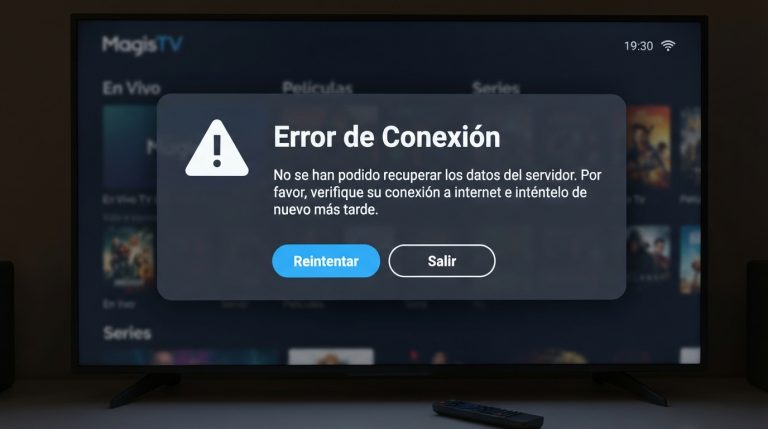
If MagisTV has become slow, keeps freezing, crashes unexpectedly, or takes too long to load, clearing the app cache can often solve the problem. Cache files are temporary files that help the app load faster, but over time they can become outdated or corrupted, leading to performance issues. In this guide, you’ll learn how to clear the MagisTV cache safely and improve the app’s speed and stability.
What Is the MagisTV Cache?
The cache is a collection of temporary files stored by MagisTV to improve loading times and reduce data usage. These files may include images, thumbnails, temporary streaming data, and other resources the app uses frequently.
Although the cache is helpful, it can grow over time and sometimes become corrupted, causing problems such as:
- Slow app performance
- Frequent freezing
- App crashes
- Buffering during playback
- Black screen errors
- Videos not loading properly
Clearing the cache removes only temporary files and does not delete your account or subscription information.
Benefits of Clearing the Cache
Regularly clearing the cache offers several benefits:
- Improves app speed
- Reduces buffering
- Fixes minor playback issues
- Frees up storage space
- Resolves temporary glitches
- Improves overall stability
It’s a simple maintenance step that can keep MagisTV running smoothly.
How to Clear the MagisTV Cache on Android
Follow these steps to clear the cache:
- Open Settings on your Android device.
- Tap Apps or Applications.
- Select MagisTV from the list.
- Tap Storage or Storage & Cache.
- Tap Clear Cache.
Once the process is complete, reopen MagisTV and check whether performance has improved.
Restart the App
After clearing the cache:
- Close MagisTV completely.
- Remove it from the Recent Apps list.
- Wait a few seconds.
- Open the app again.
Restarting the app allows it to rebuild fresh cache files.
Restart Your Android Device
If performance issues continue, restart your device.
To restart:
- Press and hold the Power button.
- Tap Restart.
- Wait for the phone to reboot.
- Launch MagisTV again.
A restart clears temporary system processes and refreshes memory.
Check Available Storage
Low storage can also reduce MagisTV’s performance.
To free up space:
- Delete unused apps.
- Remove unnecessary downloads.
- Delete duplicate photos and videos.
- Clear temporary files.
Keeping at least 2–3 GB of free storage helps the app perform more efficiently.
Update MagisTV
Older versions of the app may contain bugs that affect performance.
Updating MagisTV provides:
- Bug fixes
- Better speed
- Improved stability
- Enhanced compatibility
- Security improvements
Always install the latest version available.
Update Android Software
Keeping Android updated ensures better compatibility with MagisTV.
To update:
- Open Settings.
- Tap System.
- Select Software Update.
- Install available updates.
- Restart your device.
System updates often improve memory management and application performance.
Close Background Apps
Running too many applications at once can reduce available RAM.
Before using MagisTV:
- Close unused apps.
- Pause large downloads.
- Stop unnecessary background services.
This gives MagisTV more system resources to operate smoothly.
Clear App Data If Necessary
If clearing the cache doesn’t fix the problem, you can reset the app by clearing its data.
Steps:
- Open Settings.
- Go to Apps.
- Select MagisTV.
- Tap Storage.
- Choose Clear Data.
Keep in mind that this removes app settings and requires you to sign in again.
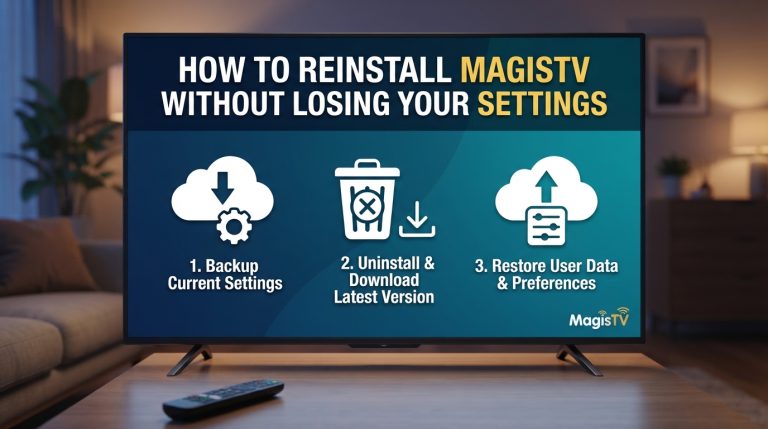
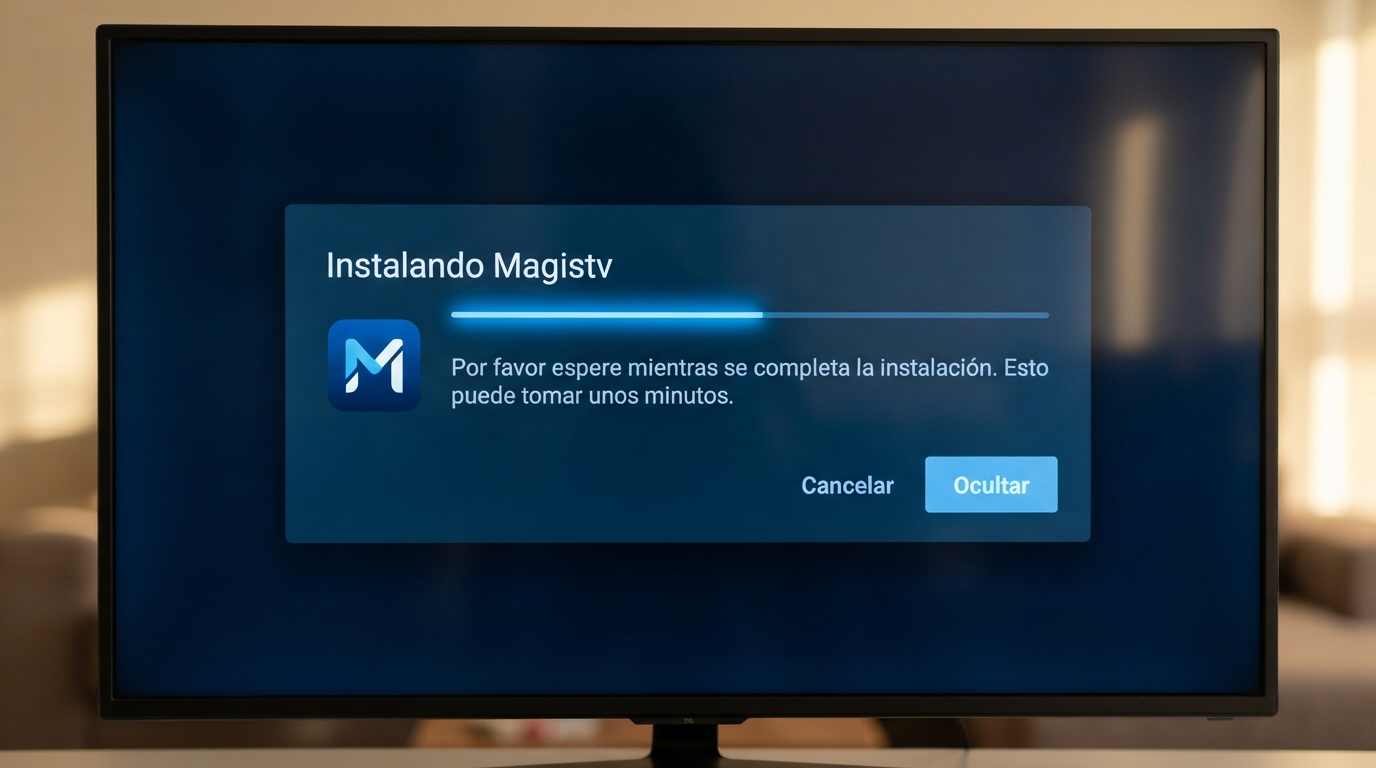
Reinstall MagisTV
If performance problems continue, reinstalling the app may help.
To reinstall:
- Uninstall MagisTV.
- Restart your Android device.
- Install the latest APK.
- Open the app.
- Sign in to your account.
A fresh installation replaces corrupted files and often restores optimal performance.
How Often Should You Clear the Cache?
There is no fixed schedule, but clearing the cache every few weeks can help maintain smooth performance, especially if you use MagisTV daily.
You should also clear the cache if you notice:
- Frequent buffering
- Slow loading
- App crashes
- Playback errors
- Black screen issues
Regular maintenance helps prevent many common app problems.
Will Clearing the Cache Delete My Account?
No. Clearing the cache only removes temporary files.
Your:
- Account
- Login credentials (in most cases)
- Subscription
- Watch history stored on the server
will generally remain unchanged. However, if you choose Clear Data instead of Clear Cache, you’ll need to log in to the app again.
Contact MagisTV Support
If MagisTV still performs poorly after clearing the cache and trying the other solutions, contact MagisTV support.
Include the following details:
- Android version
- Device model
- MagisTV version
- Available storage space
- Description of the performance issue
- Troubleshooting steps you’ve already completed
Providing complete information will help the support team diagnose the issue and recommend the best solution.