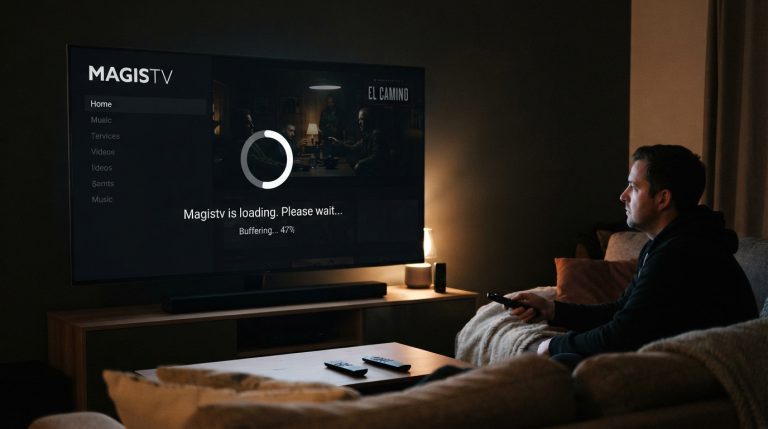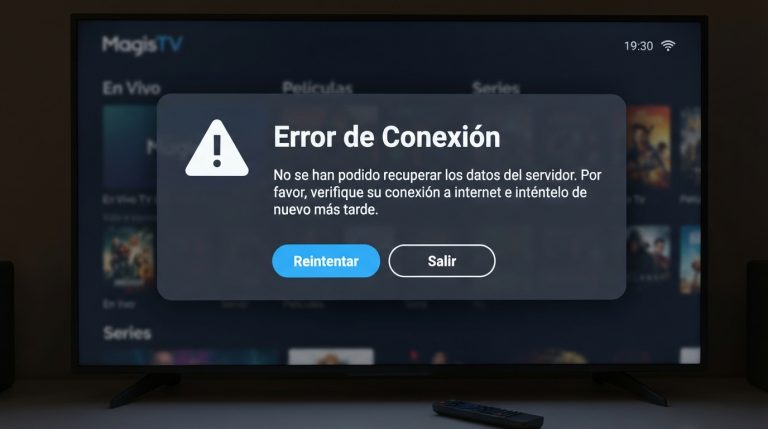

Why Is MagisTV Not Connecting to the Server?
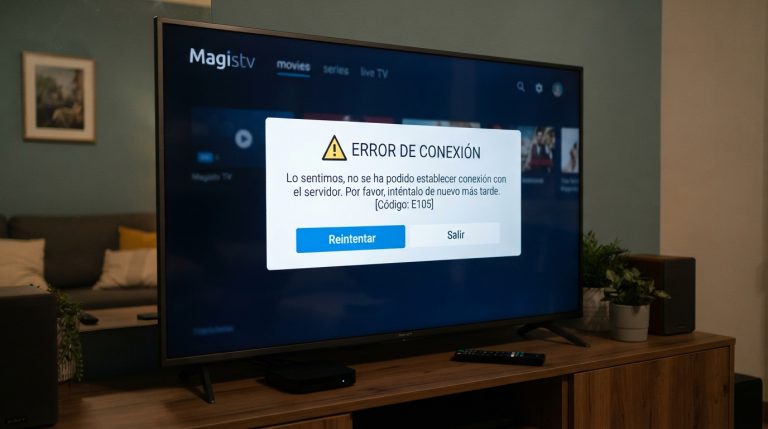
If you’re seeing a “Cannot Connect to Server” message in MagisTV, don’t worry—this is a common issue that can usually be resolved with a few troubleshooting steps. The error may occur because of internet connectivity problems, server maintenance, an outdated app version, incorrect device settings, or corrupted app data. In this guide, you’ll learn the most common reasons why MagisTV cannot connect to its servers and how to fix the problem.
Common Reasons Why MagisTV Cannot Connect to the Server
Several factors can prevent MagisTV from establishing a connection, including:
- Weak or unstable internet connection
- Temporary MagisTV server outage
- Outdated MagisTV APK
- Corrupted app cache or data
- VPN or proxy interference
- Firewall or antivirus restrictions
- Incorrect date and time settings
- Android compatibility issues
Understanding the root cause makes it easier to apply the correct solution.
Check Your Internet Connection
A stable internet connection is required for MagisTV to communicate with its servers.
Try these steps:
- Switch between Wi-Fi and mobile data.
- Restart your Wi-Fi router.
- Run an internet speed test.
- Disconnect other devices using the same network.
If other streaming apps are also having trouble, the issue is likely with your internet connection.
Verify Whether the MagisTV Servers Are Down
Sometimes the problem isn’t on your device. MagisTV servers may be temporarily unavailable because of maintenance or unexpected outages.
If multiple users are experiencing the same error, wait for some time and try connecting again later.
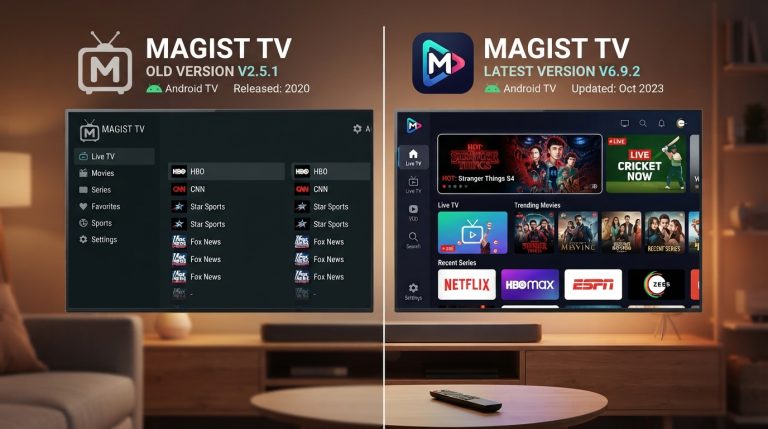
Update MagisTV to the Latest Version
Running an outdated version of MagisTV can prevent the app from connecting to newer servers.
Updating the app offers:
- Improved server compatibility
- Bug fixes
- Better security
- Performance improvements
- Support for newer Android versions
Install the latest available version before trying again.
Restart Your Android Device
Temporary software glitches can interrupt network communication.
To restart:
- Press and hold the Power button.
- Tap Restart.
- Wait for the device to boot.
- Launch MagisTV again.
A simple restart often resolves temporary connection issues.
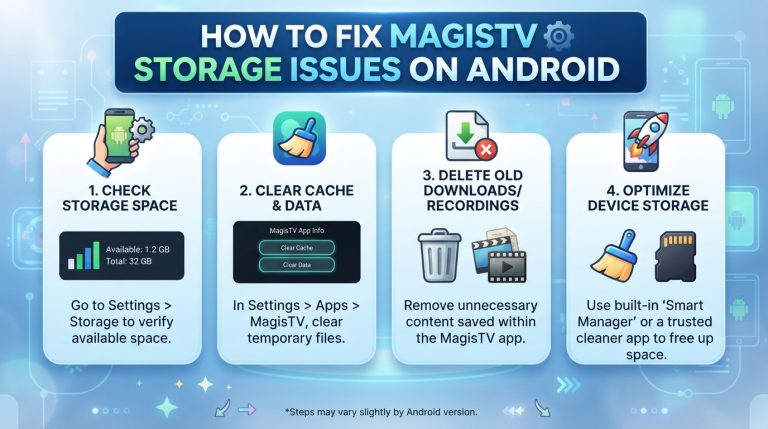
Clear MagisTV Cache
Corrupted cache files can interfere with server communication.
To clear the cache:
- Open Settings.
- Go to Apps.
- Select MagisTV.
- Tap Storage.
- Select Clear Cache.
Open the app again and check if the connection has been restored.
Clear App Data
If clearing the cache doesn’t help, reset the application’s data.
Steps:
- Open Settings.
- Navigate to Apps.
- Select MagisTV.
- Tap Storage.
- Choose Clear Data.
Keep in mind that you’ll need to sign in again after resetting the app.
Disable VPN or Proxy
VPN services can sometimes block communication between MagisTV and its servers.
Try the following:
- Turn off your VPN.
- Disconnect any proxy connection.
- Restart the app.
- Check whether the connection error disappears.
If disabling the VPN solves the issue, try connecting through another server or use the app without a VPN.
Restart Your Wi-Fi Router
Network equipment can occasionally develop temporary communication issues.
To restart your router:
- Turn it off.
- Wait for about 30 seconds.
- Turn it back on.
- Reconnect your Android device.
This refreshes your network connection and may resolve server communication errors.
Check Date and Time Settings
Incorrect date and time settings can prevent secure connections to online services.
To fix this:
- Open Settings.
- Go to Date & Time.
- Enable Automatic Date and Time.
- Restart MagisTV.
Correct system time helps establish secure server connections.
Disable Firewall or Security Apps
Some antivirus or security applications may block MagisTV’s internet access.
Temporarily disable these apps and test MagisTV again. If the connection works, add MagisTV to the security app’s whitelist.
Check Available Device Storage
Low storage space can affect app performance and background processes.
Free up storage by:
- Removing unused apps.
- Deleting unnecessary files.
- Clearing downloads.
- Moving photos and videos to cloud storage.
Maintaining adequate free space helps apps function properly.
Reinstall MagisTV
Corrupted installation files may prevent successful server communication.
To reinstall:
- Uninstall MagisTV.
- Restart your Android device.
- Download the latest APK.
- Install the application.
- Log in to your account.
A fresh installation replaces damaged files and often fixes persistent connection problems.
Update Your Android System
Older Android versions may have compatibility issues with newer MagisTV releases.
To update:
- Open Settings.
- Tap System.
- Select Software Update.
- Install any available updates.
- Restart your device.
Keeping Android updated improves network stability and application compatibility.
Check Network Restrictions
If you’re using a school, office, or public Wi-Fi network, certain streaming services may be blocked.
Try switching to:
- Your home Wi-Fi.
- Mobile data.
- A different internet connection.
If MagisTV connects successfully on another network, the original network is likely restricting access.
Contact MagisTV Support
If none of the above methods resolve the issue, contact MagisTV support for further assistance.
Include the following information in your support request:
- Android version
- Device model
- MagisTV version
- Screenshot of the server connection error
- Details about when the issue started
- The troubleshooting steps you’ve already tried
Providing complete information will help the support team diagnose and resolve the problem more quickly.