How to Fix MagisTV Subtitle Problems
Subtitles make it easier to enjoy movies, TV shows, and live content, especially when watching content in a different language or in noisy environments. If subtitles are not showing, are out of sync, display the wrong language, or stop working completely on MagisTV, don’t worry. Most subtitle issues are caused by incorrect app settings, outdated app versions, internet problems, or temporary playback glitches. This guide explains the most effective ways to fix MagisTV subtitle problems.
Why Are Subtitles Not Working on MagisTV?
Subtitle issues can occur for several reasons, including:
- Subtitles are turned off
- Wrong subtitle language selected
- Outdated MagisTV version
- Corrupted app cache
- Playback glitches
- Poor internet connection
- The selected video does not include subtitles
- Temporary server issues
Finding the exact cause will help you apply the correct solution.
Make Sure Subtitles Are Enabled
Sometimes subtitles are simply disabled within the video player.
To enable subtitles:
- Play a movie or TV show.
- Open the player controls.
- Tap the Subtitle or CC icon.
- Turn subtitles On.
- Select your preferred language if multiple options are available.
After enabling subtitles, continue playing the video to check if they appear.
Select the Correct Subtitle Language
Many videos offer subtitles in multiple languages.
If subtitles appear in the wrong language:
- Open the subtitle settings.
- Choose the language you want.
- Restart the video if necessary.
Selecting the correct language often resolves missing or incorrect subtitle issues.
Check Whether the Content Includes Subtitles
Not every movie, TV show, or live channel includes subtitle support.
Try playing another video that is known to offer subtitles. If subtitles work on other content, the original video may not include subtitle tracks.
Restart the Video
Temporary playback glitches can prevent subtitles from loading.
To refresh playback:
- Stop the video.
- Close the player.
- Start the video again.
This simple step often restores missing subtitles.
Restart MagisTV
Restarting the app clears temporary software issues.
To restart:
- Close MagisTV completely.
- Remove it from the Recent Apps list.
- Wait a few seconds.
- Reopen the app.
Play the content again and check whether subtitles appear.
Check Your Internet Connection
Subtitle files are often loaded while streaming the video.
To improve your connection:
- Restart your Wi-Fi router.
- Switch between Wi-Fi and mobile data.
- Disconnect unused devices.
- Run an internet speed test.
A stable connection helps subtitles load correctly.
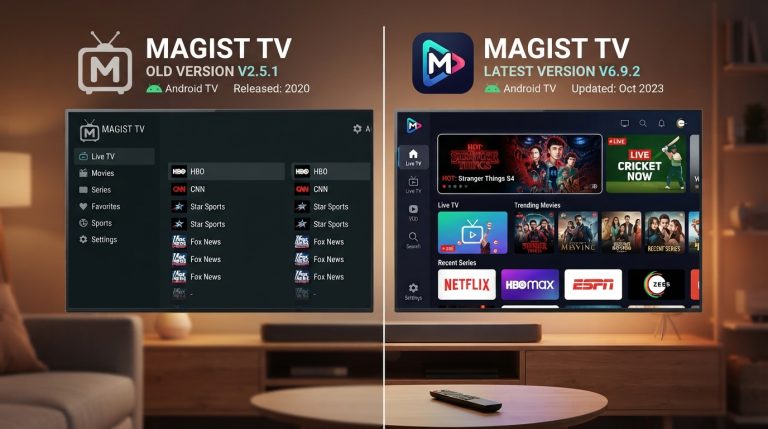
Update MagisTV
Older versions of MagisTV may contain subtitle-related bugs.
Updating the app provides:
- Bug fixes
- Better subtitle support
- Improved playback
- Better compatibility
- Enhanced performance
Always use the latest available version.
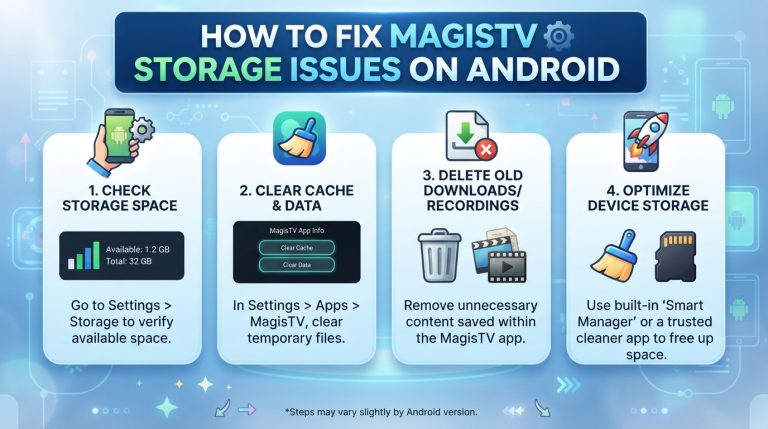
Clear MagisTV Cache
Corrupted cache files can interfere with subtitle loading.
To clear the cache:
- Open Settings.
- Go to Apps.
- Select MagisTV.
- Tap Storage.
- Choose Clear Cache.
Restart the app after clearing the cache.
Clear App Data
If subtitles still don’t work, reset the application.
Steps:
- Open Settings.
- Navigate to Apps.
- Select MagisTV.
- Tap Storage.
- Choose Clear Data.
You’ll need to sign in again after resetting the app.
Update Android Software
Running an outdated Android version can affect media playback features.
To update Android:
- Open Settings.
- Tap System.
- Select Software Update.
- Install available updates.
- Restart your device.
Keeping Android updated improves compatibility with newer versions of MagisTV.
Disable VPN Temporarily
Some VPN servers can interfere with content delivery, including subtitle files.
Try:
- Disconnecting the VPN.
- Restarting MagisTV.
- Playing the same video again.
If subtitles appear, the VPN connection may have been causing the issue.
Try Another Movie or TV Show
If subtitles don’t appear for one specific title, test another piece of content.
If subtitles work elsewhere, the issue is likely limited to the original video rather than the app itself.
Reinstall MagisTV
Corrupted installation files can prevent subtitle features from working properly.
To reinstall:
- Uninstall MagisTV.
- Restart your Android device.
- Install the latest APK.
- Open the app.
- Sign in to your account.
A fresh installation replaces damaged files and often resolves persistent subtitle issues.
Check Audio and Subtitle Synchronization
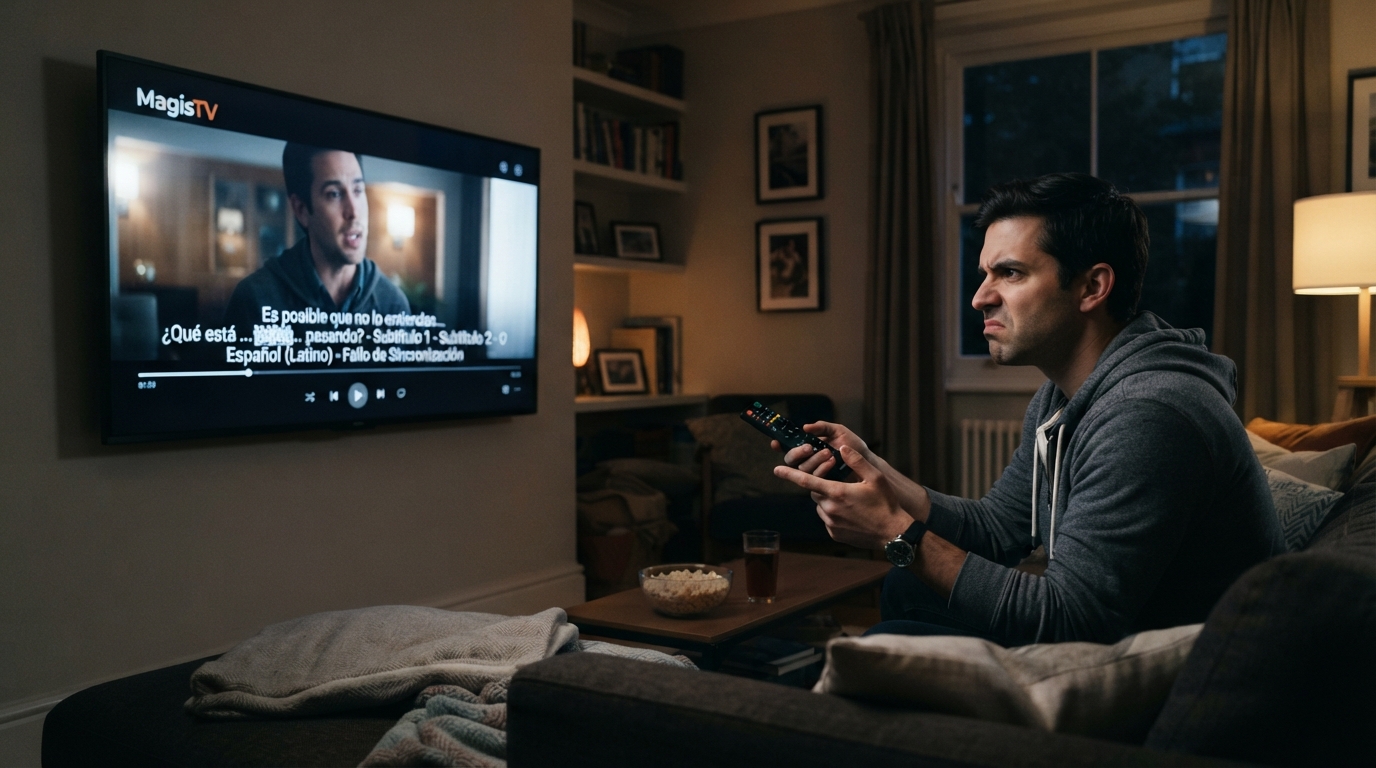
If subtitles appear but don’t match the spoken dialogue:
- Pause the video and restart playback.
- Try another stream if available.
- Restart the app.
- Make sure you’re using the latest version of MagisTV.
In some cases, the subtitle file itself may be out of sync with the video, which can only be corrected by the content provider.
Contact MagisTV Support
If subtitles still don’t work after trying all of the above solutions, contact MagisTV support.
Include the following information:
- Android version
- Device model
- MagisTV version
- Name of the movie or TV show
- Subtitle language selected
- Screenshot of the issue
- Troubleshooting steps you’ve already completed
Providing complete details will help the support team identify and resolve the problem more efficiently.