MagisTV VPN Not Working? Here’s What You Can Do
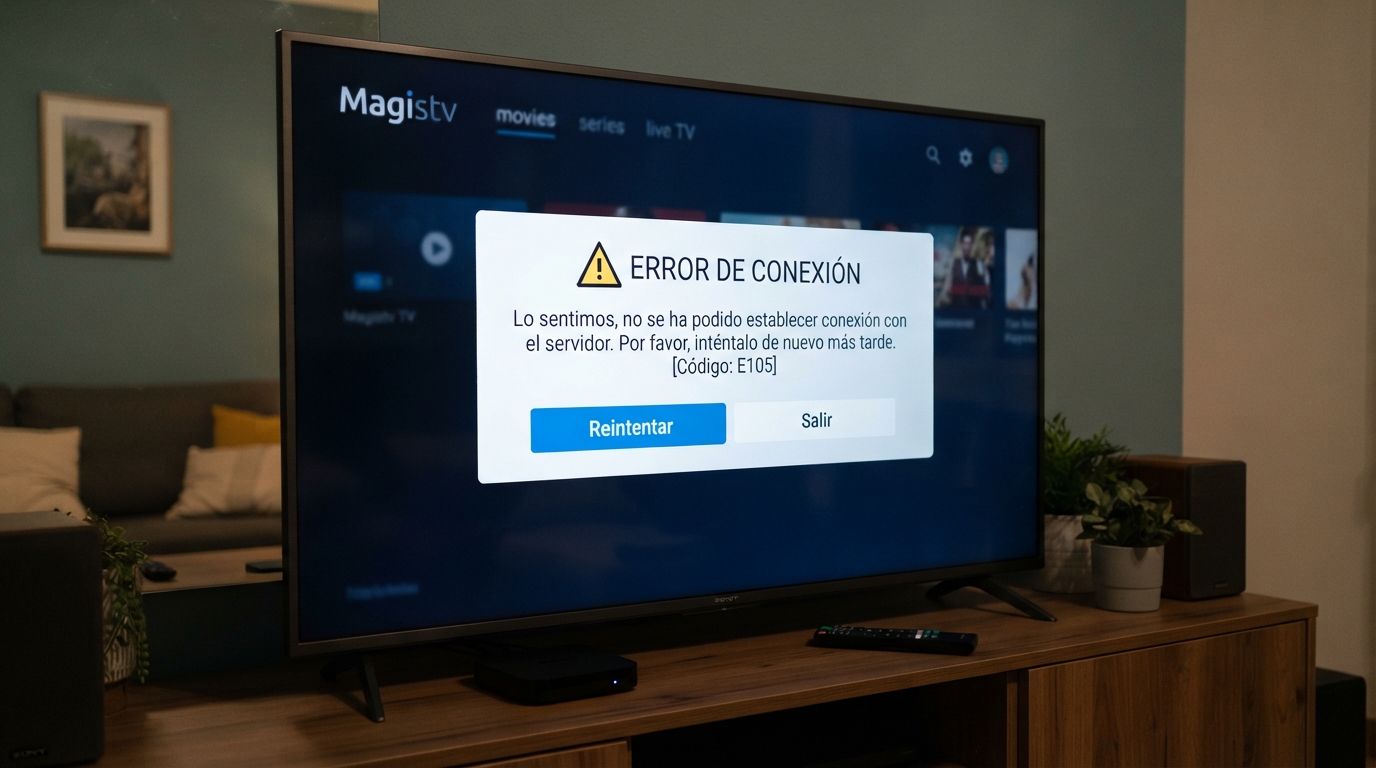
Using a VPN with MagisTV can help improve privacy or access the service from different locations, but sometimes the app may stop working when a VPN is enabled. You may experience connection failures, buffering, playback errors, login issues, or messages stating that the server cannot be reached. Fortunately, most VPN-related problems can be fixed with a few simple troubleshooting steps. This guide explains the common causes and the best solutions to get MagisTV working with your VPN again.
Why Is MagisTV Not Working With a VPN?
Several factors can prevent MagisTV from working properly when connected to a VPN, including:
- Slow VPN server
- Overloaded VPN location
- Weak internet connection
- Outdated VPN app
- Outdated MagisTV version
- DNS conflicts
- VPN protocol compatibility issues
- Temporary MagisTV server restrictions
Finding the exact cause makes it easier to choose the right solution.
Check Your Internet Connection
Before blaming the VPN, make sure your internet connection is stable.
Try these steps:
- Disconnect the VPN.
- Test your internet speed.
- Restart your Wi-Fi router.
- Reconnect the VPN.
If your internet is already slow, enabling a VPN can make streaming even more difficult.
Change the VPN Server
Some VPN servers may be overloaded or temporarily unavailable.
Try:
- Connecting to another nearby server.
- Selecting a less crowded location.
- Choosing a server optimized for streaming if your VPN offers one.
Switching servers often resolves connection and playback issues.
Switch VPN Protocols
Many VPN applications support multiple protocols.
If one protocol isn’t working, try another such as:
- WireGuard
- OpenVPN UDP
- OpenVPN TCP
- IKEv2
Changing the protocol can improve both compatibility and streaming performance.
Restart Both Apps
Temporary software glitches can affect communication between MagisTV and your VPN.
Follow these steps:
- Close MagisTV.
- Disconnect the VPN.
- Reconnect the VPN.
- Reopen MagisTV.
This refreshes both applications and may restore normal functionality.
Update Your VPN Application
Older VPN versions may contain bugs that interfere with streaming apps.
Updating the VPN app provides:
- Bug fixes
- Better server performance
- Improved security
- New server locations
- Better Android compatibility
Always keep your VPN application up to date.
Update MagisTV
Using an outdated version of MagisTV can also create compatibility problems.
Updating the app offers:
- Performance improvements
- Better streaming stability
- Bug fixes
- Improved server communication
- Enhanced Android support
Running the latest version reduces the chance of VPN-related issues.
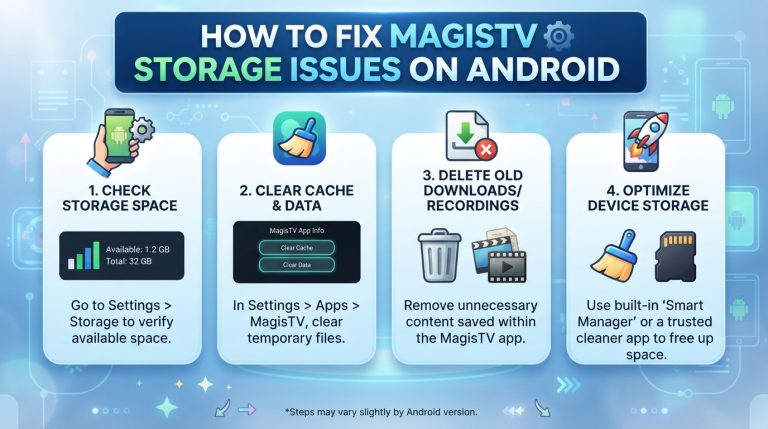
Clear MagisTV Cache
Corrupted cache files may prevent the app from connecting correctly while using a VPN.
To clear the cache:
- Open Settings.
- Go to Apps.
- Select MagisTV.
- Tap Storage.
- Choose Clear Cache.
Restart the app after clearing the cache.
Clear App Data
If the problem continues, reset the application.
Steps:
- Open Settings.
- Navigate to Apps.
- Select MagisTV.
- Tap Storage.
- Choose Clear Data.
You’ll need to log in again after completing this step.
Disable VPN Features That May Cause Conflicts
Some VPN features can interfere with streaming services.
Try temporarily disabling features such as:
- Ad blocking
- Threat protection
- Double VPN
- Multi-hop routing
- Custom DNS filtering
After disabling these features, reopen MagisTV and test the connection.
Change DNS Settings
Incorrect DNS settings can prevent MagisTV from connecting while using a VPN.
You can try:
- Using your VPN’s default DNS.
- Switching to a reliable public DNS provider if your VPN allows it.
- Restarting your device after changing DNS settings.
A DNS refresh often improves connectivity.
Restart Your Android Device
Restarting your phone clears temporary network and system errors.
To restart:
- Hold the Power button.
- Tap Restart.
- Wait for the device to reboot.
- Connect the VPN again.
- Open MagisTV.
This simple step resolves many temporary software problems.
Try Another VPN Server Location
If one country or region doesn’t work, connect to another available server.
Testing different locations can help determine whether the issue is limited to a specific VPN server.
Reinstall MagisTV
Corrupted installation files can cause persistent connection issues.
To reinstall:
- Uninstall MagisTV.
- Restart your Android device.
- Install the latest APK.
- Open the app.
- Sign in again.
A clean installation often resolves software-related problems.
Update Android Software
An outdated Android version may cause compatibility issues with both MagisTV and your VPN.
To update:
- Open Settings.
- Tap System.
- Select Software Update.
- Install any available updates.
- Restart your device.
Keeping Android updated improves overall stability and networking performance.
Test MagisTV Without the VPN
Disconnect your VPN and open MagisTV.
If the app works normally without the VPN, the issue is likely related to your VPN server, settings, or network configuration rather than MagisTV itself.
Contact VPN or MagisTV Support
If none of the above methods work, contact your VPN provider or MagisTV support.
Include the following details:
- Android version
- Device model
- VPN application name and version
- MagisTV version
- VPN server location used
- Screenshot of the error message
- List of troubleshooting steps you’ve already tried
Providing detailed information will help the support teams identify and resolve the issue more efficiently.